DNS records are the entries in a DNS zone that connect your domain to websites, mail servers and other services. For example, an A record points example.com to 192.0.2.1, an MX record defines the mail server and a TXT record holds SPF or verification values. This article shows where you find your zones and what you can do on the zone page.
The zone list
Go to DNS Zones > All DNS Zones. The list shows Name, DNSSEC, Records and Created on. Use the filters to find zones by DNSSEC, vanity nameservers, date or tag. Click Add DNS zone to create a new zone.
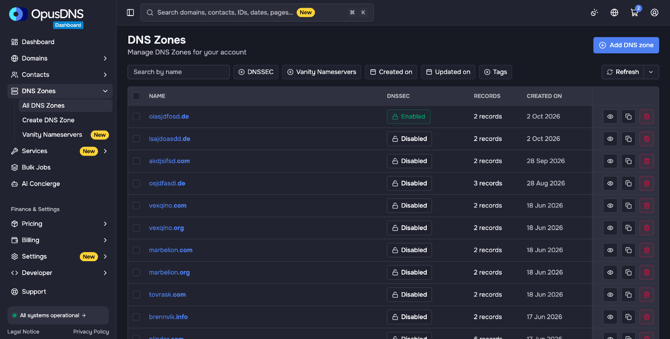
Each row has three actions:
- View zone details (eye icon): opens the zone.
- Clone zone (copy icon): copies the zone with all records to a new zone name (dialog Clone Zone). Useful if several domains use the same setup.
- Delete DNS zone (trash icon): deletes the zone and all its records. This cannot be undone.
Select several zones with the checkboxes to use the action bar: Update Tags, Replace Records, Patch RRsets, Patch Records or Delete. The record actions run as a bulk job, see What Bulk Jobs Can Do and How to Create and Manage Them.
The zone page
Click a zone name to open it (URL /dns/example.com). Below the name, the header shows which nameservers the zone uses and whether DNSSEC is on, for example "Using default nameservers • DNSSEC disabled". The page has three tabs: Records, Statistics and Settings.
Records tab
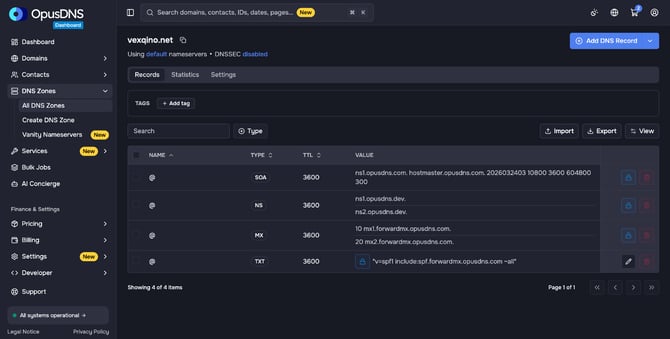
Use Add tag in the Tags box above the records to tag the zone. The table shows Name, Type, TTL and Value. Use the search field and the Type filter to find records, and View to show or hide columns.
- Protected records: the SOA record and the NS records at the zone apex show a lock icon (Protected record). OpusDNS manages them automatically; they cannot be edited or deleted. Records that OpusDNS creates for a service, for example the MX records for email forwarding, can be locked as well.
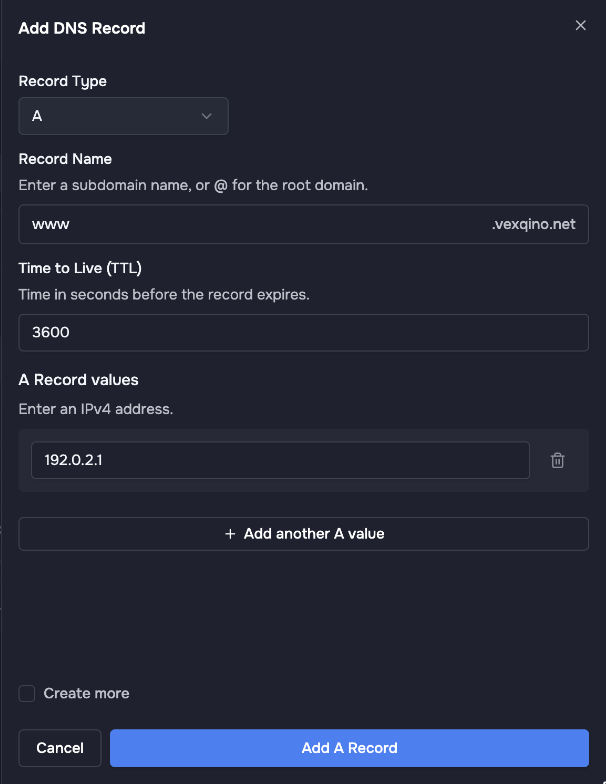
- Add DNS Record: opens the dialog for a new record. Choose the Record Type, enter the Record Name (a subdomain, or
@for the domain itself), check the Time to Live (TTL) and enter the values. Then click Add A Record (the button names the selected type). Details for every record type: Adding DNS Records, Record Types Guide. - Import: paste or upload a zone file in BIND format. Existing records with the same name and type are replaced by the imported ones. SOA, DS, DNSKEY and the zone's own NS records are skipped, because the system manages them.
- Export: exports the records of the zone, for example as a backup or for another provider.
Edit a record
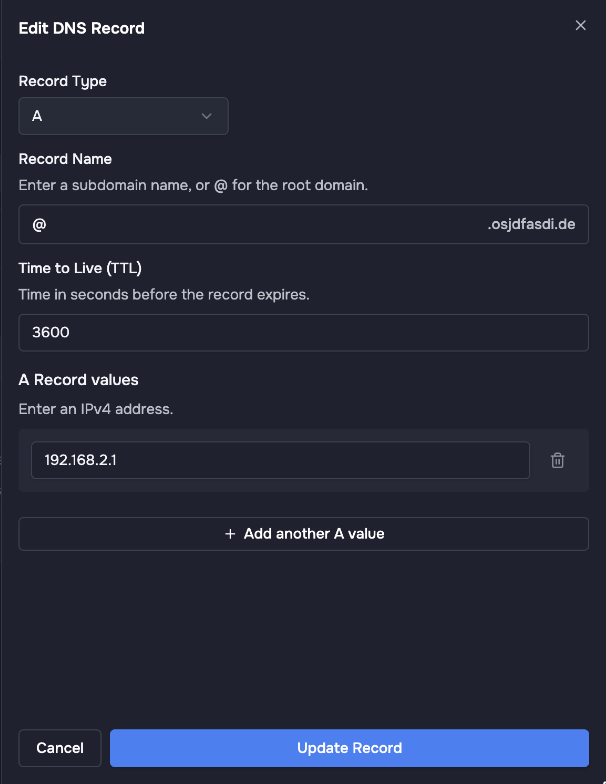
- Click the pencil icon in the row of the record.
- Change the values in the Edit DNS Record dialog.
- Click Update Record.
Delete records
- One record: click the trash icon in the row and confirm with Delete.
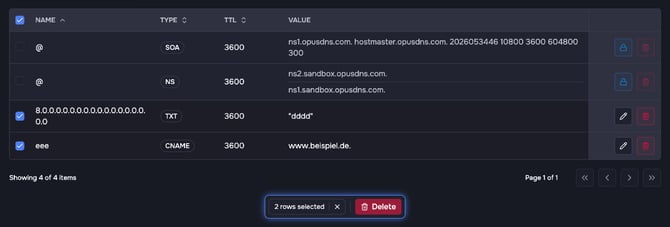
- Several records: select them with the checkboxes and click Delete in the action bar.
Statistics tab
The Statistics tab shows how often the zone is queried: Queries per day, split into NOERROR (answered) and NXDOMAIN (the queried name does not exist). Choose the time range with 7D, 30D, 90D or 12M. The table Failed lookups lists the hosts that returned NXDOMAIN in the last 30 days. Statistics are collected once a day and appear after the first collection.
Settings tab
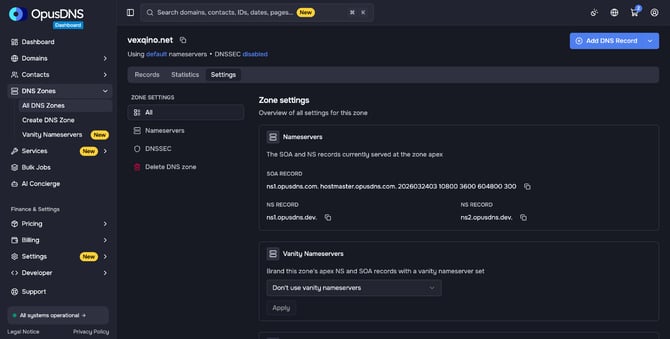
The menu on the left has All (all settings on one page), Nameservers, DNSSEC and Delete DNS zone.
- Nameservers: the SOA and NS records currently served at the zone apex.
- Vanity Nameservers: a card below Nameservers. It appears when your organization has an active vanity nameserver set. Choose the set for this zone and click Apply. With Don't use vanity nameservers the zone keeps the OpusDNS nameservers. For step-by-step instructions, see Setting Up Vanity Nameservers.
- DNSSEC: enable or disable DNSSEC for the zone and see the DS and DNSKEY records. See Configuring DNSSEC for Your Domain and DNS Zone.
- Delete DNS zone: deletes the zone and all its records. Confirm with Delete. This cannot be undone.
The same zone from the domain
For a domain in your account, you also reach its zone under Domains > All Domains > your domain > DNS. There you find Records, Nameservers, DNSSEC and Delete DNS zone. The button for a new record is called Add record there; it opens the same dialog.