
What bulk jobs can do
A bulk job applies the same change to a whole list of domains, DNS zones or contacts. Instead of repeating every step for each object, you enter the list once and OpusDNS processes it in the background. This lets you manage hundreds or thousands of domains without the API.
Examples:
- Change the nameservers of 1,000 domains at once.
- Set up domain parking for many domains.
- Add the same TXT record to many DNS zones.
You can create bulk jobs under Bulk Jobs in the dashboard, in the AI Concierge chat or with the OpusDNS API. Registrations and transfers you start in the dashboard also run as bulk jobs and appear in the same list.
Job types
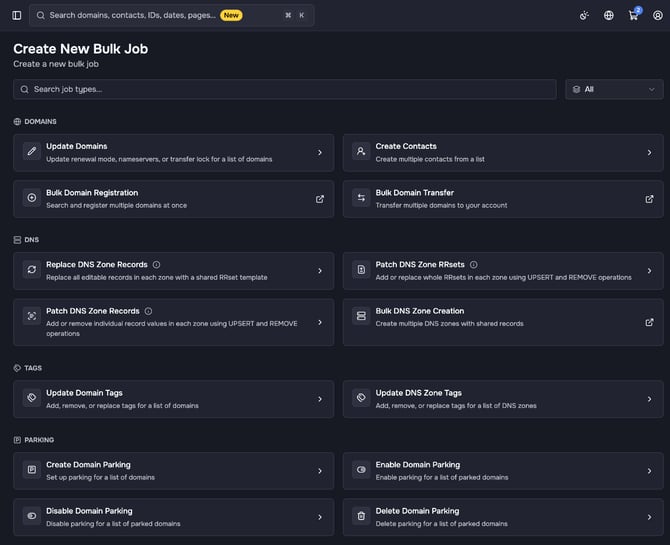
Click Create bulk job to open the page Create New Bulk Job. Use the search field Search job types... or the selection All next to it to narrow the list. The job types are grouped into sections:
Domains
- Update Domains: update renewal mode, nameservers or transfer lock for a list of domains.
- Create Contacts: create multiple contacts from a list.
- Bulk Domain Registration: search and register multiple domains at once. Opens Register Domain.
- Bulk Domain Transfer: transfer multiple domains to your account. Opens Transfer Domain.
DNS
- Replace DNS Zone Records: replace all editable records in each zone with a shared RRset template.
- Patch DNS Zone RRsets: add or replace whole RRsets in each zone using UPSERT and REMOVE operations.
- Patch DNS Zone Records: add or remove individual record values in each zone using UPSERT and REMOVE operations.
- Bulk DNS Zone Creation: create multiple DNS zones with shared records. Opens Create DNS Zone on the Bulk tab.
The DNS job types show When to use this with typical use cases. You can also start the three record jobs directly from the zone list: select the zones and choose Replace Records, Patch RRsets or Patch Records.
Tags
- Update Domain Tags: add, remove or replace tags for a list of domains.
- Update DNS Zone Tags: add, remove or replace tags for a list of DNS zones.
Parking
- Create Domain Parking, Enable Domain Parking, Disable Domain Parking and Delete Domain Parking for a list of domains.
Create a bulk job
- Go to Bulk Jobs and click Create bulk job.
- Choose the job type.
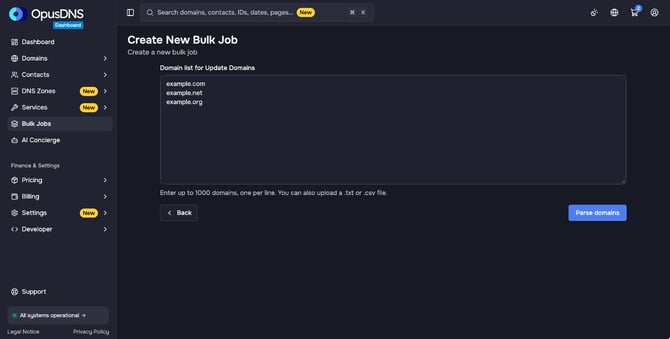
- Enter your list, one entry per line, or upload a .txt or .csv file with the same format. The page shows how many entries you can enter at most.
- Domains or zones: one name per line, for example
example.com. - Contacts: one contact per line, fields separated by tabs (for example pasted from a spreadsheet) or semicolons, in this order: first_name, last_name, email, phone, street, city, postal_code, country, disclose, state, org, title, fax.
- Domains or zones: one name per line, for example
- Click Parse domains (or Parse contacts). OpusDNS checks every entry and marks it Valid or Invalid. Remove or correct invalid entries.
- Click Proceed with 3 domains (the button shows your number).
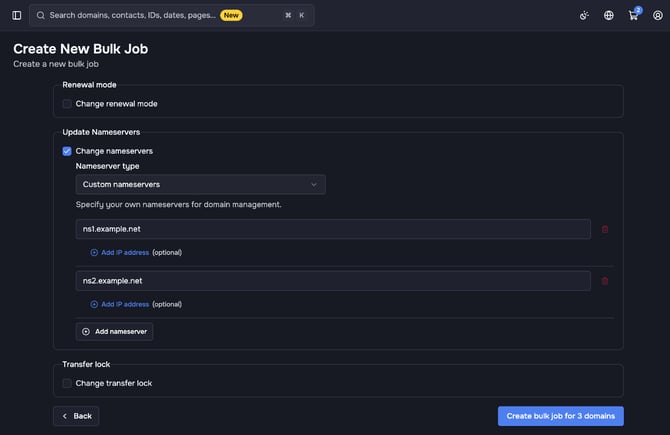
- Configure the job, for example the new nameservers, the tags or the RRsets.
- Click Create bulk job for 3 domains.
Replace DNS Zone Records replaces all existing editable records (A, AAAA, CNAME, MX, TXT and others) in every selected zone. SOA and NS stay. If you leave the template empty, all editable records are removed. In the same step you can choose Don't change DNSSEC status, Enable DNSSEC for all zones or Disable DNSSEC for all zones.
After you create the job, its detail page opens. If you see "This bulk job is still queued", the job was created but needs a few minutes to appear. Try again shortly.
The bulk jobs list
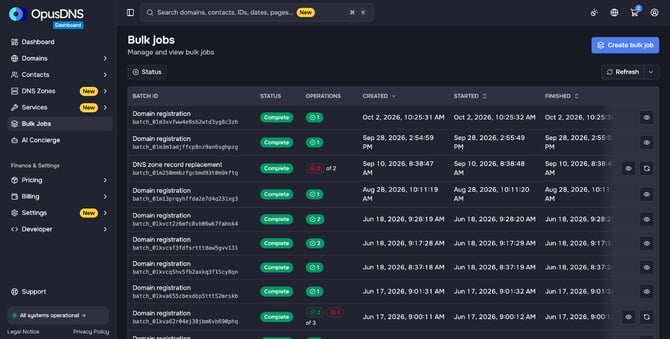
Under Bulk Jobs you see all jobs with Batch ID, Status, Operations, Created, Started and Finished. The label above the Batch ID names the job type, for example "Domain registration", or a name given through the API or the AI Concierge. The Batch ID identifies the job, for example when you contact support. Operations shows colored counts per status, for example 2 succeeded and 1 failed of 3. Use the Status filter to show only jobs with a certain status.
Job structure and statuses
Each bulk job is a batch of operations, one per domain, zone or contact. The batch has a status, and each operation has its own.
- Batch: Pending (not finished yet) or Complete (all operations have finished).
- Operation: Blocked (waiting for another operation), Queued, Paused, Running, Succeeded, Failed, Canceled or Failed after all retries.
Job details and control
Click the eye icon in a row to open a job. The detail page shows the progress, status counts and every operation with its Error reason and Raw operation data.
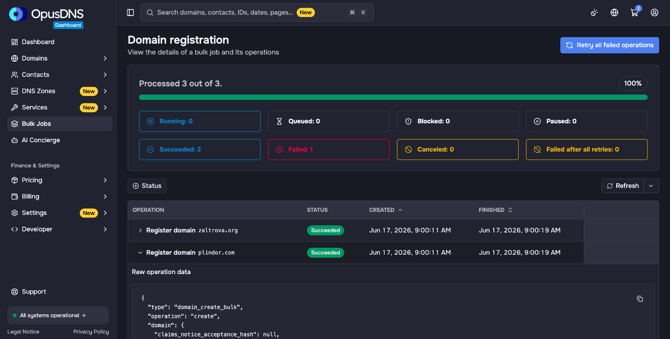
You can pause, resume, cancel or retry single operations, or use Pause all eligible operations, Resume all paused operations, Cancel all eligible operations and Retry all failed operations for the whole job. A job with failed operations also shows a retry icon directly in the list. Details: Monitoring a Bulk Job and Why Did My Bulk Job Fail?
If an error message is unclear, create a ticket in the support center and include the Batch ID.