
This guide shows how to add a DNS record in OpusDNS and which fields each record type has. A short overview of all types with examples: Supported DNS Record Types (DNS RR types).
Add a record
Go to DNS Zones > All DNS Zones, open the zone and click Add DNS Record. For a domain in your account you can also open Domains > All Domains > your domain > DNS and click Add record.
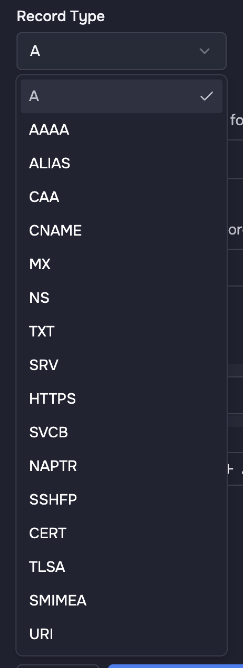
- Choose the Record Type.
- Enter the Record Name: a subdomain such as
www, or@for the domain itself. The zone name is added automatically, sowwwin the zoneexample.combecomeswww.example.com. - Check or change the Time to Live (TTL). It is set to 3600 seconds (1 hour) by default.
- Enter the value. For most types you can click Add another A value (the label names the type) to add more values to the same name. CNAME and ALIAS have only one value.
- Click Add A Record (the button names the selected type). Tick Create more first if you want to add another record right after.
If a value is not valid, the dialog shows a message under the field, for example "Invalid IPv4 address format."
Record types
A (IPv4 address)
Points a name to an IPv4 address. Add several values for round robin.
Example: Name www, Value 192.0.2.1
AAAA (IPv6 address)
Points a name to an IPv6 address.
Example: Name www, Value 2001:db8::1
CNAME (alias to another hostname)
Makes a name an alias of another hostname. Rules:
- Only for subdomains. A CNAME cannot have the same name as the zone ("CNAME records cannot have the same name as the zone."). For the domain itself, use ALIAS.
- A name with a CNAME cannot have any other record, and the other way round ("There's a CNAME record with this name." / "There's a non-CNAME record with this name.").
Example: Name shop, Value shops.example.net
ALIAS
Works like a CNAME but can also be used for the domain itself (@). Rules:
- ALIAS cannot be used in zones with DNSSEC enabled. You can select the type, but saving fails with "ALIAS records cannot be used in DNSSEC-enabled zones."
- A name with an ALIAS cannot also have an A or AAAA record ("There's an A or AAAA record with this name.").
Example: Name @, Value app.example.net
MX (mail server)
Defines the mail servers for the name. Each value has two fields: the priority (lower number = tried first) and the hostname of the mail server. A null MX with the hostname . (the domain receives no emails) needs priority 0.
Example: Name @, Priority 10, Hostname mail.example.com
TXT (text)
Stores text, for example for SPF, DKIM, DMARC or domain verification.
Example: Name @, Value v=spf1 include:_spf.example.com ~all
NS (delegate a subdomain)
Use NS records to delegate a subdomain to other nameservers. Enter the subdomain as name and the nameserver hostname as value. The NS records of the zone itself (at @) are managed by OpusDNS and protected.
Example: Name sub, Values ns1.example.net and ns2.example.net, TTL 86400
SRV (service)
Points to a service, for example SIP or XMPP. The name must have the format _service._proto, for example _sip._tcp. The value contains priority, weight, port and hostname.
Example: Name _sip._tcp, Value 10 5 5060 sip.example.com.
CAA (certificate authorities)
Defines which certificate authorities may issue certificates for your domain. Fields: Flags (usually 0), Tag and Value. Tags:
- Authorize certificate issuance (issue)
- Authorize wildcard certificates (issuewild)
- Report policy violations (iodef, value is a URL or mail address for reports)
- Custom tag
Example: Name @, Flags 0, Tag Authorize certificate issuance, Value ca.example.net
HTTPS and SVCB (service binding)
Tell clients how to connect to a service, for example which protocols (ALPN) and ports are available. Fields: Priority, Target name and optional Service parameters. For HTTPS, the target name . means the name itself.
Example HTTPS: Name @, Priority 1, Target name ., Service parameters alpn=h2,h3
NAPTR (naming authority pointer)
Used mainly for telephony and ENUM. Fields: Order, Preference, Flags, Service, Regexp (optional) and Replacement.
Example: Order 100, Preference 10, Flags s, Service SIP+D2U, Replacement _sip._udp.example.com.
SSHFP (SSH fingerprint)
Publishes the fingerprint of an SSH host key. Choose the Algorithm (RSA, DSA, ECDSA, Ed25519 or Ed448) and the Fingerprint type (SHA-1 or SHA-256), then enter the Fingerprint in hex.
CERT (certificate)
Stores a certificate in DNS. Fields: Certificate type, Key tag, Algorithm and Certificate (base64).
TLSA and SMIMEA (DANE)
Bind a TLS certificate (TLSA) or an S/MIME certificate (SMIMEA) to a name. Choose Usage (PKIX-TA, PKIX-EE, DANE-TA or DANE-EE), Selector (Full certificate or SubjectPublicKeyInfo) and Matching type (Exact match, SHA-256 or SHA-512), then enter the Certificate association data in hex.
Example TLSA name: _443._tcp for HTTPS on port 443.
URI
Points a service name to a URI. Fields: Priority, Weight and Target.
Example: Name _ftp._tcp, Priority 10, Weight 1, Target ftp://ftp.example.com/
PTR (reverse DNS)
PTR records are only available in reverse zones (zones ending in in-addr.arpa or ip6.arpa). As name, enter only the remaining part of the reverse address, for example 10 for the IP address ending in .10. The value is the hostname.
Example in the zone 2.0.192.in-addr.arpa: Name 10, Value host.example.com
Records managed by OpusDNS
SOA, the NS records of the zone itself, DNSKEY and DS are created and maintained by OpusDNS. You cannot add them in the dialog.
Choosing a TTL
The TTL defines how long resolvers cache a record before they ask again. 3600 seconds (1 hour) suits most records. A lower TTL makes changes visible faster but causes more queries.
Tip: before a planned change, lower the TTL (for example to 300), wait until the old TTL has expired, then make the change. Once everything works, raise the TTL again.