
With a connected registrar, the AI Concierge handles the tedious parts of a transfer for you: it unlocks your domains at the current registrar, fetches the auth codes, takes your contacts and DNS along and submits everything as one bulk job.
Access: the AI Concierge is activated per organization. Open AI Concierge in the left sidebar once, send the access request and confirm the addendum for the AI Concierge service. We activate your organization and you can start right away.
Where to Find It
Path: Left sidebar → AI Concierge → Tools → Domain Transfer Wizard
Direct URL: /ai-concierge
The wizard opens as a window on the AI Concierge page. You can also start it with the quick action Transfer domains below the chat input.
Two ways to transfer
- Domain Transfer Wizard (AI Concierge → Tools): the way for larger moves. Only the wizard takes your contacts and DNS records along from the current registrar.
- Chat with the
/transferskill or a message such as "Transfer example.eu to OpusDNS": good for single domains. The Concierge checks status and nameservers live, asks which contact to use and keeps the current nameservers.
Before you start: our recommended order
- Connect your current registrar. The wizard only works with domains found at a connected registrar.
- Create a registrar portfolio report. It shows unsupported TLDs, invalid contacts, transfer locks and domains that expire soon.
- Import your DNS zones first. When the zones are already at OpusDNS and checked, the transfer itself cannot break your website or email.
- Fix contacts that the report marks as invalid, see Import Contacts with the AI Concierge.
- Run
/domain_auditto see expiry dates, locks and delegation issues at a glance.
The Domain Transfer Wizard step by step
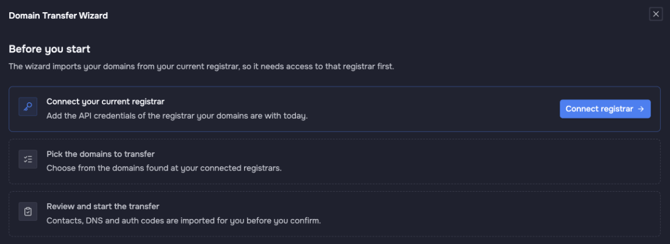
The Domain Transfer Wizard: connect your registrar, pick the domains, review and start.
- Domains: pick domains from your connected registrars, or enter domain names (one per line, comma separated, or upload a .txt or .csv file). Only domains found at your connected registrars can be added. You can unlock all selected domains at your current registrar with one click.
- Contacts: choose Registrar import to take the contacts along from your current registrar, or Use OpusDNS to use contacts you already have here. Missing contacts can be created right in this step. Some TLDs need extra contact attributes. Fill them in, otherwise the registry rejects the transfer.
- DNS & Nameservers: choose Import zone to copy the DNS records from your current registrar to OpusDNS, or Keep nameservers to leave DNS where it is. You can also choose a vanity nameserver set.
- Auth codes: the auth code (also called transfer or EPP code) proves that you own the domain. The wizard fetches the codes from your registrar. If a code cannot be fetched, enter it by hand. For some TLDs no code is needed.
- Review: check domains, contacts, DNS, auto-renew and transfer period, then start the transfer. It runs as a bulk job.
Import zone overwrites the records of an existing zone with the same name at OpusDNS. Records that OpusDNS does not support are skipped and listed. Check them before you continue.
What to watch out for
- 60-day rule: gTLD domains cannot be transferred within 60 days after registration or a previous transfer.
- Expiry date: transfer domains that expire soon early enough, so the transfer completes before they expire.
- Transfer lock: the domain must be unlocked at your current registrar. The wizard does this for you; for registrars without that option, unlock it there.
- Unsupported TLDs: the portfolio report lists TLDs that OpusDNS cannot take over yet.
- DNSSEC: if you keep the current nameservers, nothing changes and DNSSEC keeps working. If the domain moves to the OpusDNS nameservers, turn DNSSEC off at your current provider before the transfer, otherwise the domain can stop resolving during the move. OpusDNS creates the zone unsigned at first, so turn DNSSEC on again manually after the transfer. This can differ depending on your setup. If in doubt, contact our support via the Support Center or by email to support@opusdns.com.
- Balance: a transfer usually includes a renewal. Make sure your account balance or credit line covers it.
- Approval at the old registrar: after submitting, you may need to log in to your current registrar and approve the outgoing transfers.
- Duration: most transfers complete within minutes, for some TLDs and registries it can take several days.
Transfer in the chat
Write for example "Transfer all my .com and .de domains at InterNetX that expire in the next 3 months to OpusDNS" or use /transfer example.com. The Concierge:
- checks each domain live,
- never asks for the auth code of a domain in a connected account, it fetches it after your approval,
- asks which contact to use and never picks one on its own,
- keeps the current nameservers unless you ask otherwise,
- checks TLD rules before it queues the transfer, for example the required contact type for .fr or the declaration for .it that you need to confirm,
- shows the transfer for approval before anything starts.
From chat results you can also click Start transfer for N domains to continue in the wizard.
After the transfer
- Follow the progress under Bulk Jobs.
- Run
/zone_auditand/security_reviewon the new domains. - Turn on the transfer lock again, for example with "Lock all domains I just transferred".
- If the domains now use the OpusDNS nameservers and had DNSSEC before: turn DNSSEC on again. The zone at OpusDNS starts unsigned.
More about the AI Concierge
- What Is the AI Concierge and What Can It Do?
- How to Use the AI Concierge
- AI Concierge Skills: Get More Out of the Concierge
- Connect Your Current Registrar
- Registrar Portfolio Report: Plan Your Move to OpusDNS
- Transfer DNS Zones with the AI Concierge
- Import Contacts with the AI Concierge
- Prepare a Domain Transfer with the AI Concierge
See also
- How to Transfer Domains to OpusDNS (manual transfer without the Concierge)