
The DNS Zones Transfer copies your DNS zones with all their records from your current registrar to OpusDNS. You can use it on its own, without transferring the domains, and we recommend doing it before a domain transfer: when your zones are already at OpusDNS and checked, your website and email keep working during the move.
Access: the AI Concierge is activated per organization. Open AI Concierge in the left sidebar once, send the access request and confirm the addendum for the AI Concierge service. We activate your organization and you can start right away.
Where to Find It
Path: Left sidebar → AI Concierge → Tools → DNS Zones Transfer
Direct URL: /ai-concierge
The wizard opens as a window on the AI Concierge page. You can also start it with the quick action Transfer DNS zones below the chat input.
Before you start
The DNS Zones Transfer reads the zones at your current registrar, so it needs access to that registrar first. Connect your current registrar.
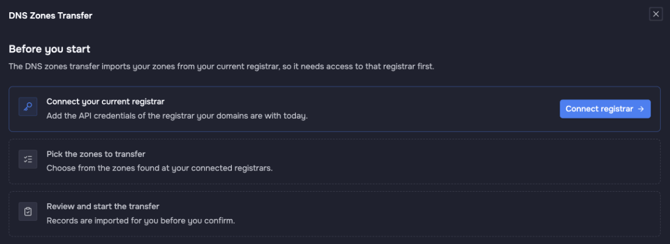
The DNS Zones Transfer: connect your registrar, pick the zones, review and start.
Step by step
- Pick the zones found at your connected registrars, or enter zone names.
- Check the status of each zone:
- Ready: the zone can be imported.
- Empty: the zone has no records.
- Not Found: no zone with this name at your connected registrars.
- Check failed: the zone could not be read. Try again later or check the connection.
- Look at unsupported records. The wizard counts records that OpusDNS cannot import. Note them and recreate them in another way if you need them.
- Review the zones and the number of records, then start the import. It runs as a bulk job.
After the import
- Run
/zone_auditon the imported zones. It finds issues such as a CNAME at the zone apex, a single nameserver, missing CAA, SPF or DMARC records or a very low TTL. - Compare important records with your current provider, especially MX, SPF and verification TXT records.
- Point the domains to the OpusDNS nameservers, or transfer the domains and choose Keep nameservers or the OpusDNS nameservers there.
DNSSEC: the imported zone is unsigned at first. If DNSSEC is active at your current provider, turn it off there before you switch the nameservers to OpusDNS, and turn DNSSEC on at OpusDNS afterwards. If you keep the current nameservers, nothing changes. This can differ depending on your setup. If in doubt, contact our support via the Support Center or by email to support@opusdns.com.
Ask the Concierge in plain words, for example "Import all DNS zones from my InterNetX account" or "Which of my zones are not delegated to OpusDNS yet?"
More about the AI Concierge
- What Is the AI Concierge and What Can It Do?
- How to Use the AI Concierge
- AI Concierge Skills: Get More Out of the Concierge
- Connect Your Current Registrar
- Registrar Portfolio Report: Plan Your Move to OpusDNS
- Transfer DNS Zones with the AI Concierge
- Import Contacts with the AI Concierge
- Prepare a Domain Transfer with the AI Concierge