
If you have never transferred a domain before, please read this article first.
Configuring Nameservers & DNS Zones for Domain Transfers
When transferring a domain, your existing DNS configuration is not automatically copied. If you use the AI Concierge to handle the transfer, your DNS configuration will be copied automatically. However, this does not apply when you perform the transfer manually via the dashboard, as described in this article. If you don’t clone your current DNS setup in these cases, your domain and web services may become unreachable after the transfer because the required DNS records will be missing.
How to Transfer a Domain to OpusDNS
Transfer your existing domains from another registrar to OpusDNS for full domain management.
Where to Find It
Path: Left sidebar → Domains → Transfer Domain
Direct URL: /domains/transfer
What You'll See
A text area with placeholder text "Enter domain or domains to transfer (one per line)" and a help text line explaining the format. Below that is a "Search Domains" button.
Prerequisites
Before starting a transfer:
- The domain must be at least 60 days old (ICANN rule). Read more you need to know here.
- The transfer lock must be disabled at your current registrar.
- You need the Authorization Code (Auth Code / EPP Code) from your current registrar.
- The domain must not be expired or have pending payments.
Step-by-Step
Enter domains and auth codes — In the text area, enter one domain per line in the format:domain.com,AUTH_CODE[,premium]
premium option here if the domain is a premium domain. Otherwise, simply omit it.For example:
   mybrand.com,Xy9$kL2mP
   anotherdomain.net,Abc123!def
.txt or .csv file with the domains you wish to transfer, following the format described above.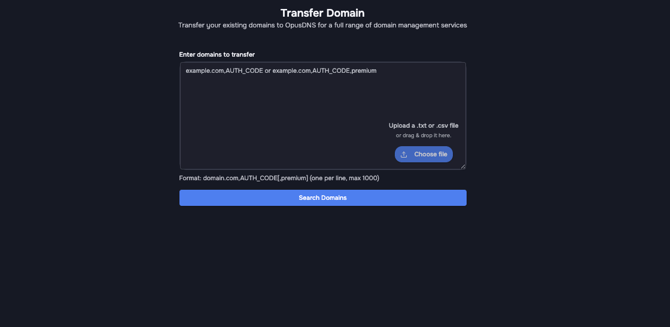
You can enter multiple domains (up to the maximum limit shown in the help text).
- Click "Search Domains" — The system validates each domain. The button shows "Processing..." while checking.
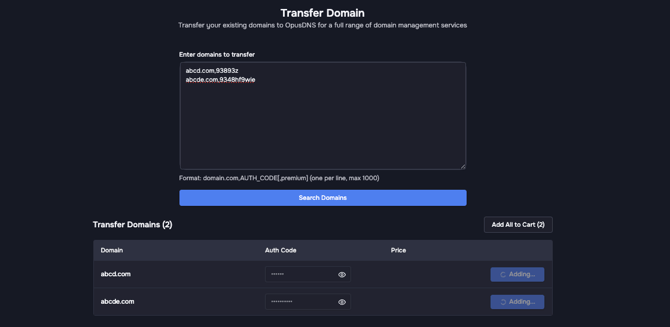
- Review results — A table appears with columns: Domain, Auth Code, Price, and Period.
- If a domain shows "Not available" status with the message "Domain is not registered or not eligible for transfer", it cannot be transferred.
- For eligible domains, you'll see the transfer price.
- If an auth code is missing, a field appears to enter it per domain.
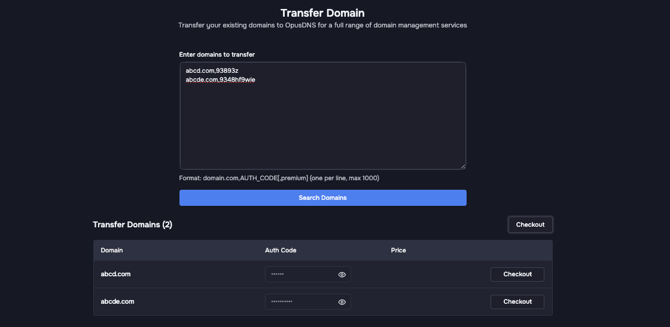
- Add to cart — Click "Add to Cart" per domain or "Add All to Cart (X)" to bulk-add all eligible domains. The button shows "Adding..." during processing.
- Go to Checkout — Click "Go to Checkout" to proceed.
- Checkout: Configuration — Same wizard as registration:
- Choose nameservers (OpusDNS recommended or custom)
- Assign contacts, you can create a new one with Create contact button or choose the arrow next to this and use an existing one.
- Set auto-renewal in bulk (enable or disable), or manage it individually using the toggle for each domain.
- Set the registration period in bulk. Depending on the domain extension (TLD), you may be able to choose a period shorter or longer than one year.
- Depending on the registry and domain extension, you may need to provide additional information or assign a contact with the required attribute set.
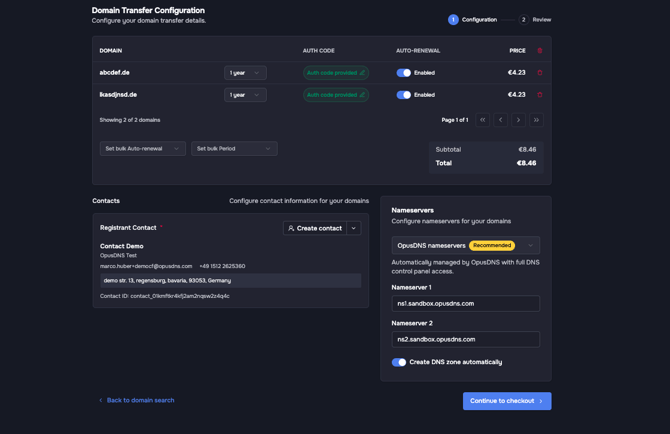
- Click "Continue to checkout"
- Checkout: Review — Verify the order summary showing "Transfer" items, then click "Transfer domains" (button shows "Transferring..." during processing). If you need to modify any settings, click Back to Configuration at the bottom of the summary.
- Wait for completion — transfers usually take a few minutes, but depending on the registry and TLD they can take up to 14 days. For most TLDs, however, the process is nearly instant. The current registrar must approve the transfer, and you will receive notifications about its status throughout the process.
If you need to leave the process or close the tab, your ongoing transfers and registrations will be saved in the cart in the upper-right corner. Simply click the cart, review your items, and continue where you left off.
Common Mistakes
- Incorrect auth code — Double-check for typos, extra spaces, or expired codes. Error message: "Authorization code is required" or the transfer will fail.
- Transfer lock still active — Disable it at your current registrar first.
- Domain too new — ICANN requires 60 days after registration or the last transfer.
- Auth code min/max length — Must meet minimum length requirements.
Success & Failure Messages
- ✅ "[domain] added to cart successfully"
- ✅ "X domains added to cart successfully"
- ❌ "Failed to add [domain] to cart"
- ❌ "Domain is not available for transfer"