
Registering a Domain — Step-by-Step Checkout
After adding domains to your cart, follow the checkout process to complete registration.
Where to Find It
After adding domains via the search page, click the "Checkout" button. You can also reach checkout from: Left sidebar → Domains → Register Domain → add domains → Checkout.
Direct URL: /checkout/create
What You'll See
A multi-step wizard with two main steps shown as a progress indicator at the top:
- Configuration — Set up nameservers and contacts
- Review — Confirm your order and register
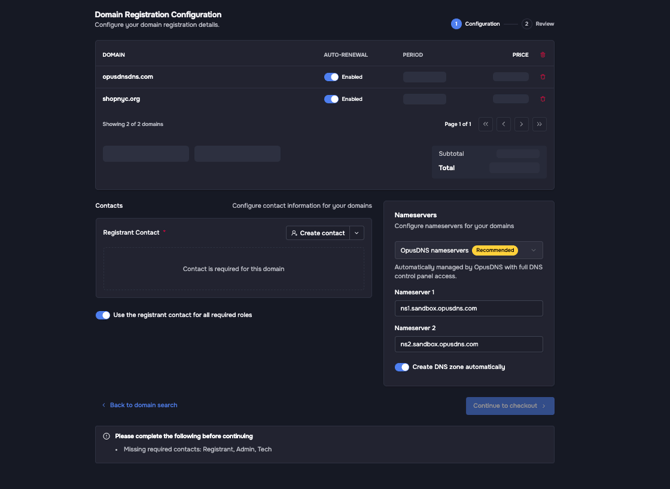
Step 1: Configuration
This step has several sections:
Domains List
A table showing all domains in your cart with columns: Domain, Period, Auto-renewal, and Price. You can:
- Change the registration period per domain (e.g., 1 year, 2 years) via a dropdown. A "Sale" badge appears if a promotional price applies.
- Toggle auto-renewal on or off per domain (Enabled/Disabled).
- Filter domains using the search box ("Filter domains...").
- Remove domains from your cart.
Nameservers Section
Choose between two options:
- OpusDNS nameservers (labeled "Recommended") — Automatically managed with full DNS control panel access. If selected, a checkbox offers "Create DNS zone automatically".
- Custom nameservers — Enter your own nameservers. Click "Add Nameserver" to add more (minimum 2 required). Optionally add IP addresses (glue records) for each nameserver.
Contacts Section
Assign contacts for your domains:
- A checkbox offers "Use the registrant contact for all required roles" — checking this applies the same contact as Registrant, Admin, Tech, and Billing.
- Click "Use Existing Contact" via the arrow icon to search and select from your saved contacts.
- Click "Create Contact" to add a new one inline.
Actions at the bottom:
- "Back" — Returns to the search page
- "Continue to checkout" — Proceeds to review
Step 2: Review
Shows a summary of your order:
- Cart Summary panel showing:
- Number of domains (e.g., "3 domains")
- "Registration" label
- Per-domain line items with price
- Subtotal, Discount (if applicable), and Total
- Review your nameserver and contact selections.
Actions at the bottom:
- "Back to configuration" — Returns to step 1
- "Register domains" — Submits the registration (button shows "Registering..." during processing)
After Registration
On success, you'll see a confirmation page. Your domains will appear in the Domains list and a DNS zone is created automatically if you selected that option.
Common Mistakes
- Insufficient balance — Ensure your account balance covers the total before clicking "Register domains". Add funds via Settings → Billing.
- Missing contact — Every domain requires at least a Registrant contact. The system shows "Contact is required for this domain" if one is missing.
- Invalid nameservers — Custom nameservers must be valid hostnames (e.g.,
ns1.example.com). At least 2 are required.