
How to Top Up via Credit Card
Use a saved credit card to instantly add funds to your account balance.
Where to Find It
Path: Left sidebar → Settings → Payments
Direct URL: /settings/payments
What You'll See
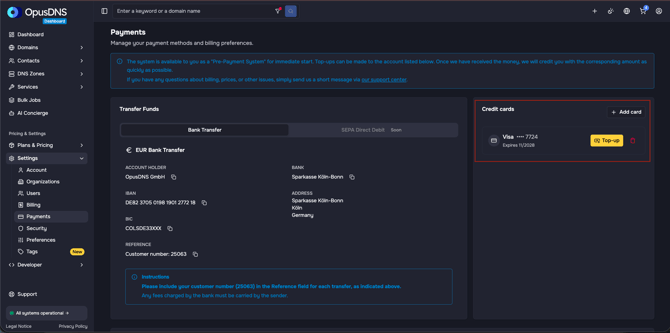
The Payments page shows a "Credit cards" section listing your saved cards. Each card shows:
- Card brand and last 4 digits
- Expiration date ("Expires [date]")
- "Default" badge if it's your default card
- A "Top-up" button
- A "Set as default" link (for non-default cards)
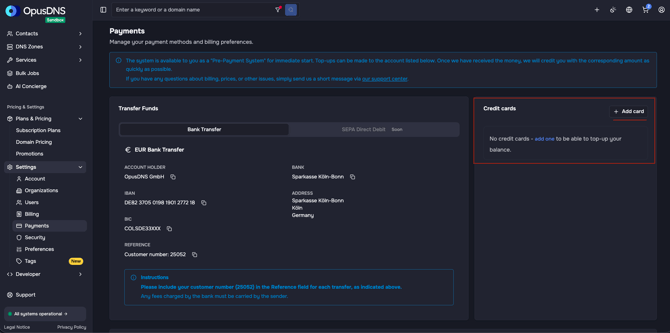
If no cards are saved, you'll see: "No credit cards — add one to be able to top-up your balance." with a link to add a card.
Adding a Credit Card
- Click "Add card" on the Payments page.
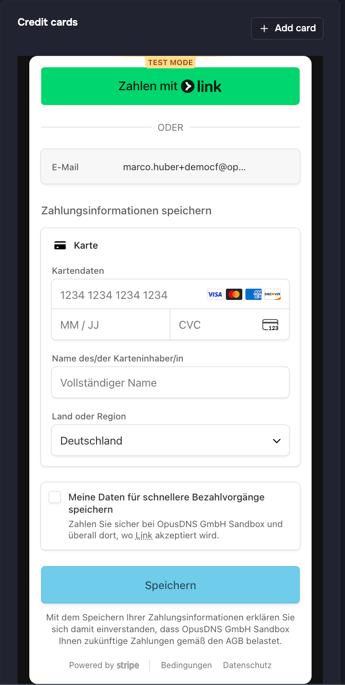
- A Stripe-powered form appears to securely enter your card details.
- Complete the form to save the card.
Note: If Stripe doesn't load, you'll see: "Stripe, the secure payment provider we use, could not be loaded. This may be caused by browser settings or ad blockers. Please adjust your settings or try a different browser or device."
Topping Up
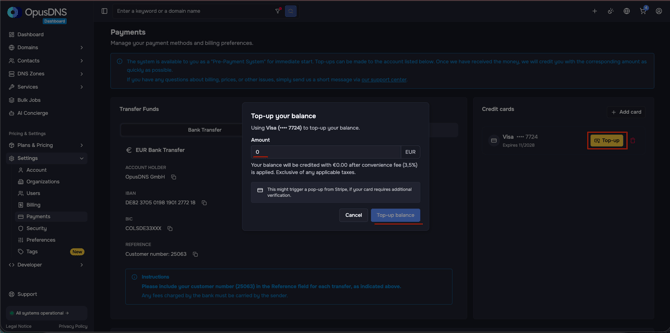
- On your saved card, click "Top-up".
- A dialog appears titled "Top-up your balance" with the message "Using [Card Name] to top-up your balance."
- Enter the Amount you want to add.
- Note the fee disclosure: "Your balance will be credited with [amount] after convenience fee (3.5%) is applied. Exclusive of any applicable taxes."
- Click "Top-up balance" (shows "Topping-up..." while processing).
- If your card requires 3D Secure verification, a Stripe popup may appear.
Success/Error Messages
- ✅ "Your balance has been updated."
- ✅ "The top-up has succeeded — it will be reflected in your balance in a minute." (for delayed crediting)
- ❌ "Could not top-up your balance."
- ❌ "Unexpected error from Stripe — please try again later."
Deleting a Credit Card
- On the card, click the delete action.
- Confirmation dialog: "Delete credit card? — Do you want to delete [Card Name]?"
- Click "Delete credit card" (shows "Deleting...").
Messages:
- ✅ "Credit card has been deleted."
- ❌ "Could not delete the credit card."