With the sub-organization and User settings, companies and agencies can efficiently structure their accounts. The feature allows the management of multiple departments, subsidiaries, or client accounts under a main organization. Different teams, such as Marketing, Sales, or Engineering, can work separately, while billing remains centralized under the main organization.
This feature is particularly useful for:
-
Large companies with multiple departments
-
Corporate groups with multiple subsidiaries
-
Resellers or agencies managing client accounts
We currently offer a default permission set in the Dashboard, and we’re working on a more granular permission system to enable greater administrative control.
→ Currently, sub-organizations do not have access to your billing settings or pricing plan page.
What can i do with this Feature?
-
Create sub-organizations: OpusDNS customers (admins) can create sub-organizations under Settings → Organizations.
-
Context Switching: OpusDNS customers can switch between the Main-Organization and sub-organizations to act as the sub-org.
-
Impersonation Banner: Displays a banner during context switching, indicating the current sub-organization.
-
Access Control: API requests are routed through the sub-organization, with billing and pricing restricted to the main organization.
How does this Feature work?
This feature allows you to create hierarchies of sub-organizations and users. Each sub-organization can manage its own users. As an admin, meaning the person who created the OpusDNS account, you can impersonate your sub-organizations and manage users within them.
-
This means by adding users directly in your dashboard, they are assigned to your main organization.
-
Assigning them to sub-organizations from the admin dashboard is not possible. Instead, you manage users by impersonating the respective sub-organization and making changes there.
Example 1:
You have a single organization and a colleague needs access to your domain management. In this case, you can simply create a new user within your main organization.
Example 2:
You manage domains as an agency for customers who may occasionally need access to their DNS settings. You can create a separate sub-organization for each customer, switch into it, and add the relevant users there.
Example 3:
You have internal or external departments and want to separate responsibilities and control. For example, you might create one sub-organization for marketing and another for app development, each with its own users and permission settings.
Create another User for your (Admin-) Account
-
Log in as a OpusDNS customer
-
Go to Settings → Users → Add User
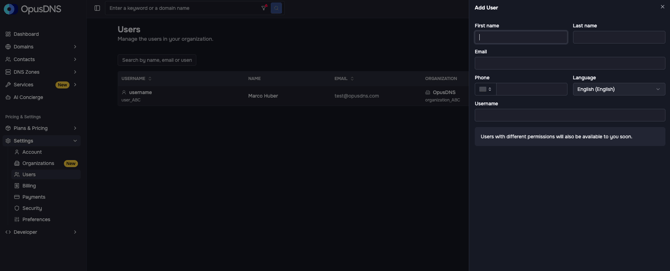
If you create a new user, they will receive an email to verify their address. They can then complete their account setup by following the verification link and setting a password.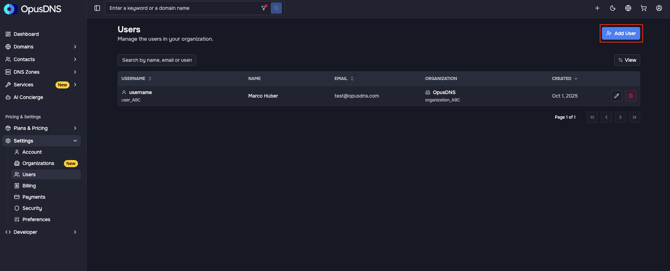
- Fill in the required Fields to add the User
-
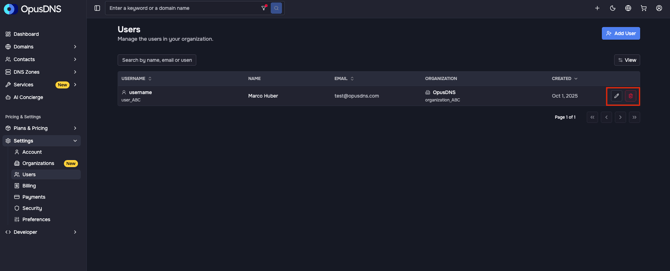
Afterward, you can manage and delete your Users from the same menu
Create a sub-organization either with a user or without one
-
If you create a sub-organization with a user, that user will automatically be assigned as the sub-organization admin, and the structure can no longer be deleted.
- If you're unsure about your setup, it's best to first create and finalize your sub-organization structure without users, and then add users afterward (see the next section on impersonation).
- Each user can belong to only one (sub-)organization.
-
Log in as a OpusDNS customer
-
Go to Settings → Organizations → Add Organization
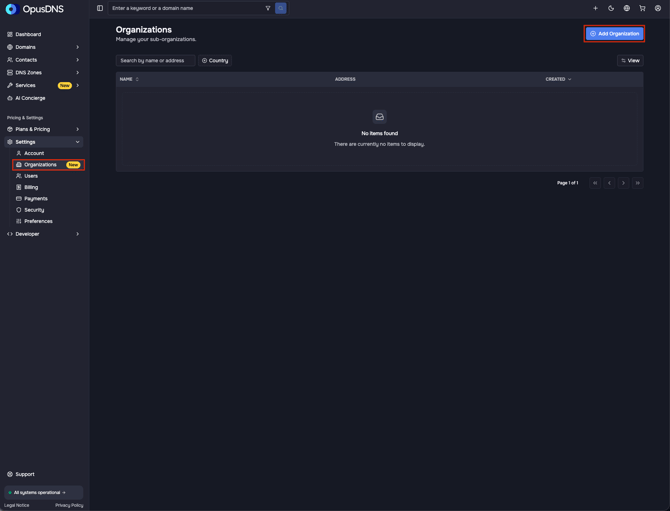
-
Fill in Organization details. You can toggle on User creation as well and fill in the User details here.
→ Click on Create.If you create a new user, they will receive an email to verify their address. They can then complete their account setup by following the verification link and setting a password.
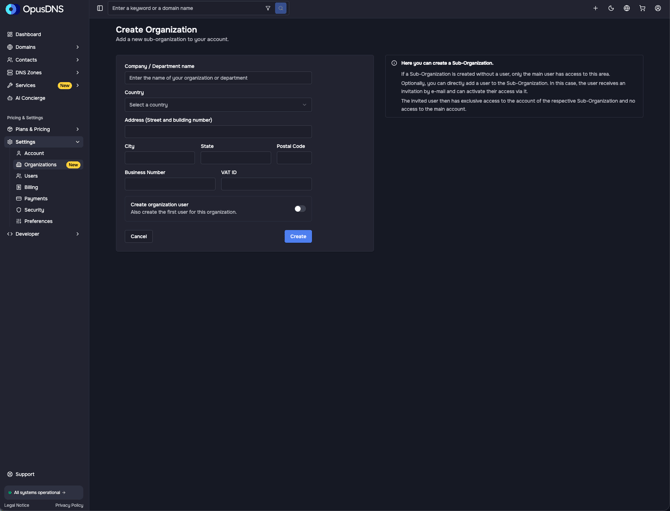
-
Afterward, you can manage and delete your organizations from the same menu
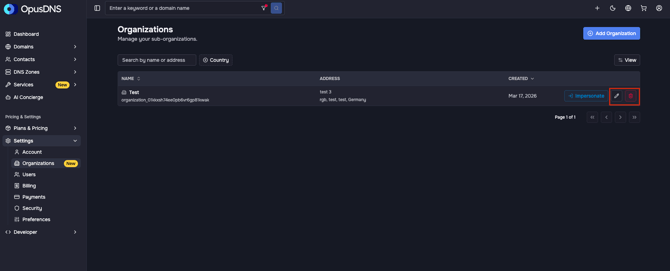
Impersonate your sub-organization
With this feature, you can view the platform exactly as a sub-organization does. As an admin of the main organization, you can create and manage users within a sub-organization using the impersonation feature.
After creating your first sub-organization, an impersonation option will appear next to the edit and delete actions.
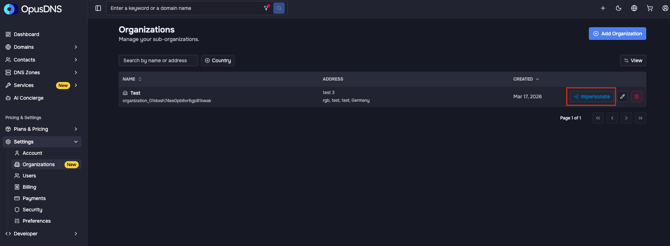
Once you start impersonating, you will be taken into the sub-organization. A banner at the top of the interface clearly indicates that you are currently acting within that sub-organization.
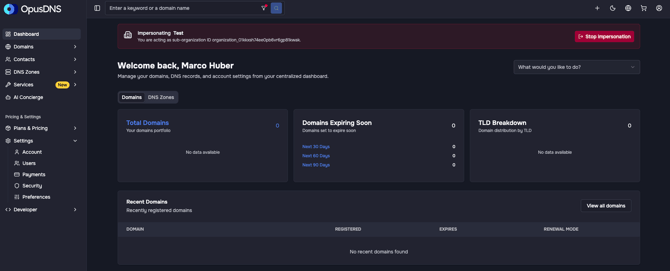
From there, you can create and manage users as usual. Any changes you make will apply only to the selected sub-organization and will not affect your main organization.