
Viewing Invoices and Billing History
Where to find Invoices
Path: Left sidebar → Settings → Billing (invoice section)
Direct URL: /settings/billing
What You'll See
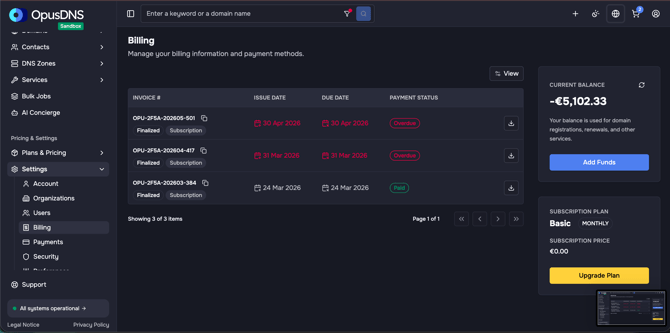
A table of invoices with the following columns:
- Invoice # — Unique invoice number
- Date (Issue Date) — When the invoice was issued
- Due Date — Payment due date
- Inside of an Invoice you can see:
- Amount — Invoice total
- Currency — Payment currency
- Fees — Any applied fees
- Taxes — Tax amount
- Payment Status — Payment state:
- Pending — Payment not yet received
- Failed — Payment attempt failed
- Paid (Succeeded) — Payment completed
- Status — Invoice state:
- Draft — Invoice being prepared
- Finalized — Invoice issued
- Failed — Invoice processing failed
- Pending — Awaiting processing
- Voided — Invoice canceled
- Type — Invoice category:
- Subscription, Add-on, Credit, One-off, Advance Charges, Progressive Billing
- Actions — Download option
Overdue Invoices
Invoices past their due date show an "Overdue" badge. A note shows: "[amount] still to pay."
Downloading Invoices
Click the "Invoice PDF" download button on any invoice row to download a PDF copy.
Where to find Billing / Transaction History
Path: Left sidebar → Settings → Payments
Direct URL: /settings/payments
At the top of the page, you will find the available payment methods. By scrolling down, you can view your transaction history, which lists all individual transactions such as domain registrations, transfers, and services.
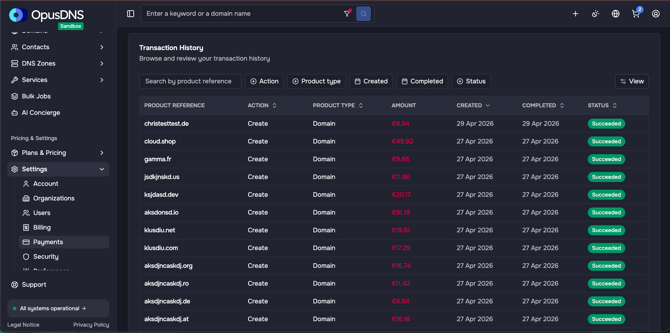
What You Can See Here
- Product reference — Unique reference for the product or service
- Action — The performed or available action (e.g., purchase, renewal, transfer)
- Product type — Category of the product or service
- Amount — The charged or paid amount
- Created — Timestamp when the entry was created
- Completed — Timestamp when the entry was completed (if available)
- Status — Current status of the transaction or process