Where to Find Your Auth Code
The Authorization Code (Auth Code) is required when transferring a domain away from OpusDNS to another registrar.
Important: Never share your Auth Code with any third party you do not know or trust.
No domain registrar or provider will ever ask you to share your Auth Code. Any email requesting your Auth Code should be considered suspicious and may be a scam or phishing attempt.
If you receive an email claiming to be from OpusDNS, please note that we will never ask you for your Auth Code.
If you want to transfer a domain to another registrar please make sure to disable the transfer lock, also in the settings tab, to make sure the transfer is possible.
Where to Find It
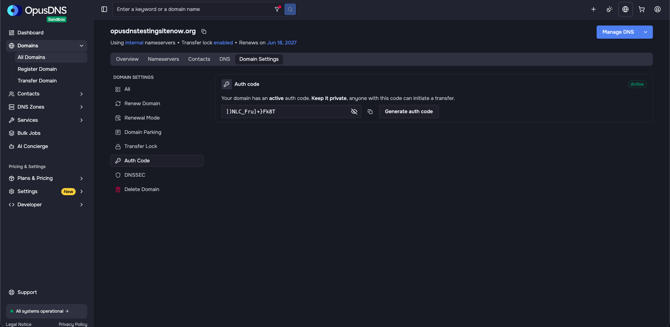
Path: Left sidebar → Domains → click on a domain → Settings tab → look for the "Auth code" menu entry in the left sidebar and click on it
Direct URL: /domains/[DOMAIN]/settings/auth-code
What You'll See
On the domain's Overview page, you'll find the Auth code field in the domain details section. It has the following elements:
- A label "Auth code" with the description "Your domain has an active auth code. Keep it private, anyone with this code can initiate a transfer."
- An eye icon: "Show" and "Hide" to reveal or hide the code
- Action buttons:
- "Copy to clipboard" — Copies the code for pasting elsewhere
- "Create a new code" — Generates a fresh auth code (invalidates the old one)
Step-by-Step
- Navigate to Domains in the left sidebar.
- Click on the domain you want to transfer out.
- On the Settings tab, click on the Auth code menu entry.
- Click on the eye icon to reveal the code.
- Click "Copy to clipboard" to copy it. A notification appears: "Auth code copied to clipboard".
- Provide the code to your new registrar to initiate the inbound transfer on their side.
Generating a New Auth Code
If your code has expired or you need a fresh one:
- Click "Create a new code".
- The system shows "Creating new auth code..." while processing.
- On success: "Auth code created" notification appears.
- On failure: "Failed to create a new auth code" notification appears.
Important Notes
- Generating a new code immediately invalidates the previous one.
- You must disable the Transfer Lock on your domain before the new registrar can complete the transfer. Find the transfer lock toggle on the same Overview page.