
Understanding the Dashboard Home Page
The Dashboard home page gives you a high-level summary of your account. Here's what each section shows.
What You'll See
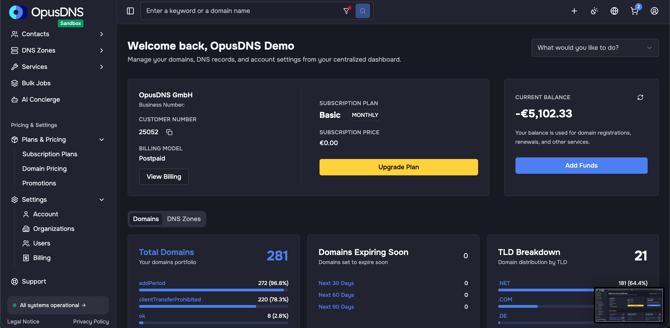
When you open the Dashboard (click "Dashboard" in the left sidebar or navigate to /), the main content area displays several cards arranged in a grid layout. At the top, a welcome message greets you by name: "Welcome back, [Your Name]".
Quick Actions Bar
A search-style bar labeled "What would you like to do?" appears near the top. It provides shortcuts to common tasks:
- View all domains — Opens your full domain list
- Register domain — Goes to the domain registration search
- Domain transfer — Goes to the transfer page
- Add DNS Zone — Creates a new DNS zone
- Add Contact — Creates a new contact profile
Tabs: Domains and DNS Zones
Below the Quick Actions, two tabs let you switch views:
- Domains tab — Shows domain-focused cards
- DNS Zones tab — Shows DNS-focused cards
Domain Cards (Domains Tab)
Total Domains Card
- Displays your total number of registered domains
- Shows "You have no domains yet." if empty
Domains Expiring Soon Card
- Shows counts of domains expiring in the next 30, 60, and 90 days via clickable tabs
- Helps you plan renewals
TLD Breakdown Card
- A visual chart showing how your domains are distributed across TLDs (e.g., .com, .de, .net)
- Shows "No TLD data available" if you have no domains
Recent Domains Table
- A table with columns: Domain, Registered, Expires, Renewal Mode
- Shows your most recently registered domains
- Includes a "View all domains" link at the bottom
DNS Cards (DNS Zones Tab)
Total DNS Zones Card
- Displays the total count of DNS zones in your account
- Shows breakdown of DNSSEC Enabled vs. DNSSEC Disabled zones
- Shows "You have no DNS zones yet." if empty
Recent DNS Zones Table
- Columns: Zone Name, Records, DNSSEC Status
- Shows your most recently created zones
- Includes a "View all DNS zones" link
Tips
- If any card shows an empty state, look for the primary action button (e.g., "Register domain") to get started.
- The expiring domains card is a good daily check — review domains expiring within 30 days to decide on renewals.
- You can click any domain or zone name in the tables to jump directly to its detail page.