
What Bulk Jobs Can Do
Bulk jobs let you perform large-scale operations on domains, DNS zones, and contacts in a single batch.
Because we are developing at a very fast pace, the supported operations and features described here may have already expanded by the time you read this. However, the overall concepts and processes will remain the same.
Instead of repeating every step again and again for multiple domains, zones or contacts you can now make a list of your domains and create a batch that affects all objects of your list.
This allows you to efficiently manage hundreds or even thousands of domains without needing to use an API. However, API users can also leverage the bulk job endpoint to automate workflows and scale their solutions.
Examples:
- Change nameservers for 1,000 domains at once
- Create domain parking for multiple domains simultaneously
- Change renewal mode for multiple domains at once
Bulk jobs can be created via:
- The Bulk Jobs menu entry (Left sidebar → Bulk Jobs)
- The AI Concierge chat (most common)
- The OpusDNS API
- The Transfer Wizard for bulk domain transfers
To view existing jobs: Left sidebar → Bulk Jobs (or via AI Concierge tool badges)
Supported Operations
Domain Management
- Update Domains
Apply changes to a list of domains like- Nameserver updates
- Transfer lock changes
- Renewal mode changes
- Create Domain Parking
Set up parking for a list of domains - Enable Domain Parking
Enable parking for a list of parked domains - Disable Domain Parking
Disable parking for a list of parked domains - Delete Domain Parking
Delete parking for a list of parked domains - Bulk Domain Registration
Search and register multiple domains at once - Bulk Domain Transfer
Transfer multiple domains to your account
Contacts
- Create Contacts
Create multiple contacts from a list
Domain Tags
- Update Domain Tags
Add, remove or replace tags for a list of domains
DNS Zone Management
- Replace DNS Zone Records
Replace all editable records in each zone with a shared RRset template - Patch DNS Zone RRsets
Add or replace whole RRsets in each zone using UPSERT and REMOVE operations - Patch DNS Zone Records
Add or remove individual record values in each zone using UPSERT and REMOVE operations - Bulk DNS Zone Creation
Create multiple DNS zones with shared records
Job Structure
Each bulk job is a batch containing multiple operations. The batch has an overall status, and each operation within it has its own status.
Batch label:
This label matches the bulk job you triggered. For example, when you start a Patch DNS Zone RRsets bulk job, this label will be used as the name of the job entry in your overview.
Batch ID:
The unique UUID used to identify your batch. It is helpful for support purposes or when you have multiple bulk jobs, allowing you to easily distinguish and reference the correct one.
Batch statuses:
- Pending — Job is waiting to start
- Complete — All operations have finished
Operation statuses:
- Blocked — Waiting for a dependency
- Queued — Ready to run
- Paused — Manually paused
- Running — Currently executing
- Succeeded — Completed successfully
- Failed — Encountered an error
- Canceled — Manually canceled
- Dead Letter — Failed after all retry attempts
Create a Bulk Job and view its Overview & Details
As mentioned above, there are multiple ways to create bulk jobs. The easiest way is to create one via the Bulk Jobs section in the dashboard.
Where to find it
Path: Left Sidebar → Bulk Jobs
Direct URL: /bulk-jobs
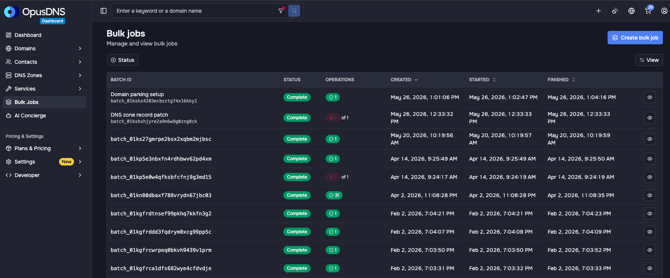
What you'll see - Bulk Jobs Overview
There, you will see a table containing the following information:
- Batch label
- Batch ID below the label
- Batch Operation status
- Operations summary (e.g. 1 failed out of 1, or 2 successful and 2 failed out of 4)
- Created date
- Start date
- Finished date
If you never created an bulk job or never transferred or registered an domain via dashboard (the dashboard processes also uses bulk jobs visible in the menu entry), then the table will be empty.
You can also add or remove columns using the view selector above the table.
Creating a Bulk Job via Dashboard
1. Start a Bulk Job
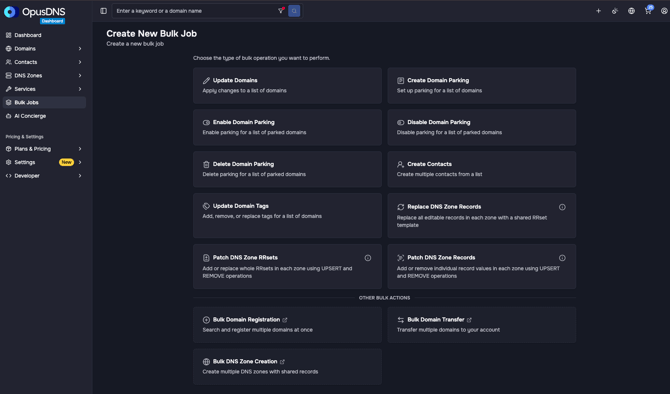
In the Bulk Jobs Overview, you will find a Create Bulk Job button above the table.
Select the bulk job type you want to execute (see the section above on supported bulk job operations).
2. Provide Input Data
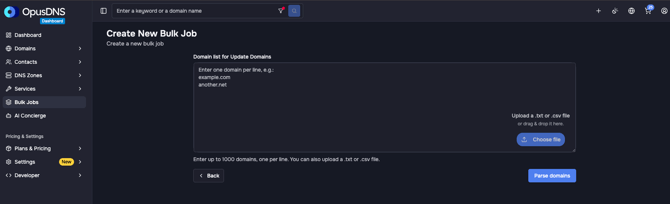
In most cases, you will be redirected to a page where you can enter your data.
Domain input
- Paste a list of domains / Zones / Contacts
- Format: one domain per line (line-by-line list)
Alternative input method
- Upload a file instead (CSV or TXT)
- File must follow the same format as the text input
Additional required data
Depending on the selected bulk job type, you may also need to:
- Provide additional values (e.g. domain, value pairs separated by commas)
- Select variables
- Enable or disable specific modes or settings
3. Validate Input
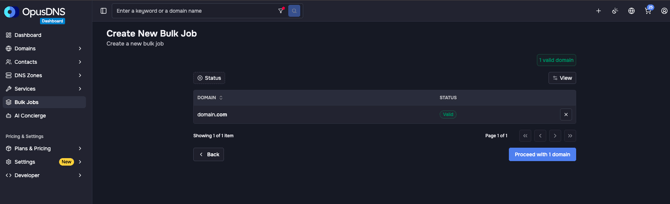
- Parse your domains
- Review and control your input
- All entries will be validated before continuing
- Proceed once everything is correct
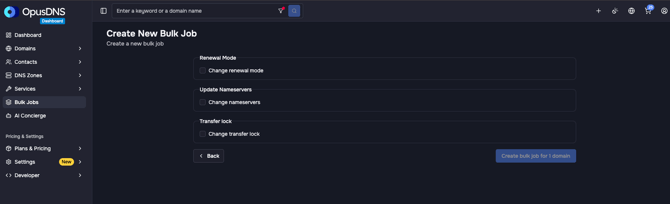
4. Configure Job Settings
Depending on the bulk job type, you may be required to:
- Add additional data
- Select variables
- Switch modes (enabled / disabled)
After completing your configuration, create the bulk job for your domains using the button.
5. Processing
After clicking Create, your bulk job will be processed.
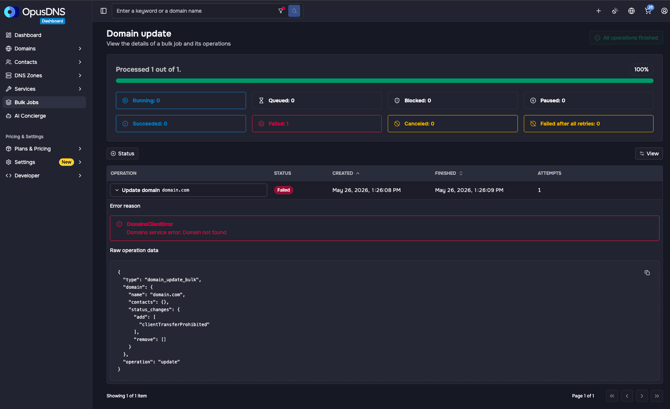
You will be redirected to a detailed overview where:
Progress tracking
- A progress bar at the top shows the current processing status
Status overview
- Color-coded status badges indicate the processing state
- Clicking on a badge filters the entries
- Useful for large lists (e.g. to view only failed, queued, or successful items)
- Useful for large lists (e.g. to view only failed, queued, or successful items)
6. Job Details
For each bulk job entry, you can see:
- Status
- Creation date
- Completion date
- Expandable details view
Inside the expanded section, you will find the raw operation data, which may vary depending on the bulk job type.
7. Control Options
You can also:
- Pause processes
- Cancel processes
This can be done:
- Individually per entry
- Or in bulk for all entries
This is useful if you notice that something in the configuration is incorrect.
Bulk Job Details
In the Bulk Jobs Overview, you can open the detailed view of a specific bulk job by clicking the eye icon at the end of the corresponding row.
This view is identical to the one shown while the bulk job is running (see section 6 above), allowing you to review the full process and its results at any time.
Where to find it
Path: Left Sidebar → Bulk Jobs → Click on a Bulk Job
Direct URL: /bulk-jobs/[BATCH_ID]
What you will see
There, you will see a table containing the following information:
- Operation (label + object name)
- Batch Operation status
- Created date
- Finished date
You can also add or remove columns using the view selector above the table.
Clicking on a table entry opens an expanded view that provides the same information shown during the bulk job creation process. In this view, you can inspect the raw operation data, giving you deeper insight into your input and the execution results. If any part of the process has failed, corresponding error messages will also be displayed in the expanded view.
If an error message is unclear, please create a support ticket in your support center.