
What Are Attribute Sets?
Some top-level domains (TLDs) require additional contact information beyond the standard fields for domain registrations and transfers, as mandated by the respective registry. OpusDNS manages these requirements through Contact Attribute Sets.
Attribute sets are collections of TLD-specific data fields that must be provided for certain domain extensions.
Examples:
- .fr domains (AFNIC) require:
- Contact Type — Individual (PP) or Organization (PM)
- First Name (for individuals)
- Legal Status, Company ID Type, SIREN number (for organizations)
- .de domains may require local presence verification
Note to Local Presence:
Some TLDs require contacts from specific countries. If your contact's country doesn't match, you'll see a warning: "This TLD requires local presence. Your contact's country ([country]) does not match the eligible countries for .[tld]: [countries]."
Each attribute set is:
- Tied to a specific TLD
- Given a human-readable Label (e.g., "My .de attributes")
- Linked to one or more contacts
Creating an Attribute Set
Where to Find It
Path: Left sidebar → Contacts → Attribute Sets
Direct URL: /contacts/attribute-sets
What You'll See
A table of existing attribute sets with columns: Label, TLD, Linked Contacts, Created, and Updated. Above the table is a "New attribute" button.
How to create an Attribute Set
Option A: Create Attribute Set under Attribute Sets
- Navigate to Contacts → Attribute Sets.
- Click "New attribute".
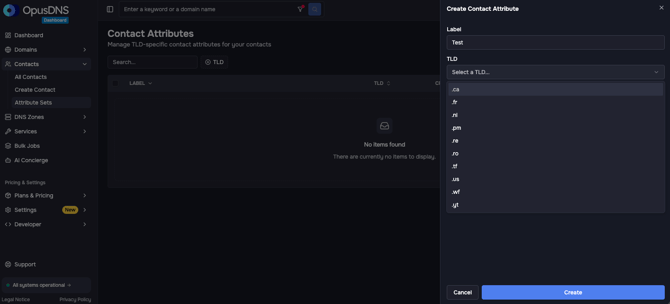
- In the dialog:
- Label — Enter a descriptive name (e.g., "ACME Corp .fr attributes").
Placeholder displays: "e.g. My .de attributes" - TLD — Select the TLD this applies to from the dropdown (search with "Search TLD...").
Only TLDs with required attributes appear. - Fill in the TLD-specific fields that appear after selecting the TLD.
- Label — Enter a descriptive name (e.g., "ACME Corp .fr attributes").
- Click "Create".
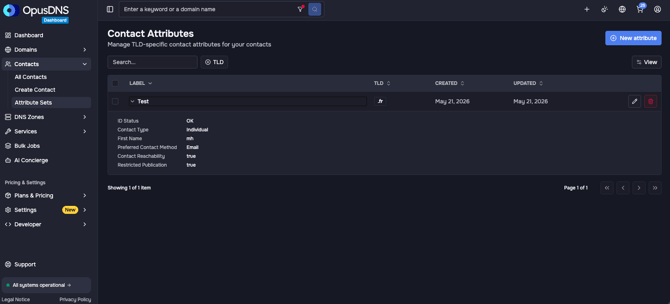
Afterwards, you will see your new contact attribute in the table. You can expand the table to view the full set of attributes.
Option B: Create Attribute Set under Specific Contact
Step-by-step alternative:
- Navigate to Contacts in the left sidebar.
- Open All Contacts.
- Select the contact for which you want to create attributes.
- In the contact profile, look for the “Add Attribute” button.
- Click the button, choose "Create new" and continue with the attribute creation process as described above.
Linking an Attribute Set to a Contact
Where to Find It
Path: Left sidebar → Contacts → All Contacts → Choose the contact you want to link the set to
Direct URL: /contacts/[CONTACT_ID]
How to link an Attribute Set
Follow these steps to link an Attribute Set to a Contact:
- On a contact's detail page, find the Contact Attributes section.
- Click "Add attribute" to link an existing attribute set.
- In the dialog, you can choose between:
- "Link existing" — Search and select from existing attribute sets. Filter by TLD.
- "Create new" — Create a new attribute set and link it immediately.
- Select "Link existing", search for your attribute set and confirm.
Success & Error messages
- ✅ "Contact attribute has been created successfully"
- ✅ "Contact attribute has been linked successfully"
- ✅ "Contact attribute has been created and linked successfully"
- ❌ "This contact attribute set is linked to one or more contacts and cannot be deleted"
.jpg?width=670&height=174&name=Knowledge%20Base%20Banner_%205%20Dark%20(1).jpg)