
Setting Up Passkeys (Passwordless Sign-In)
Passkeys let you sign in without a password using biometric authentication (fingerprint, face recognition) or a hardware security key.
Where to Find It
Path: Left sidebar → Settings → Security → Passkeys card
What You'll See
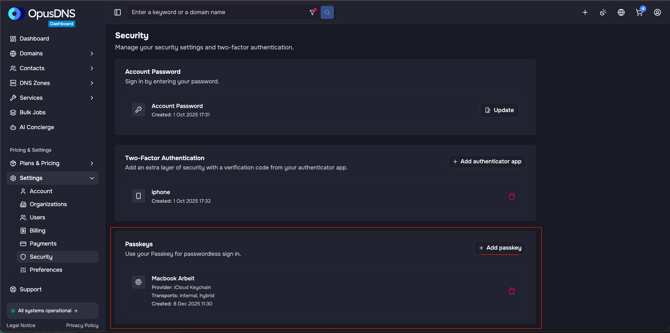
Passkeys card:
- Title: "Passkeys"
- Description: "Use your Passkey for passwordless sign in."
- If no passkeys: "No passkeys configured yet." with an "Add passkey" button
- If configured: Lists each passkey with its provider, transport method, and creation date
Adding a Passkey
- Navigate to Settings → Security.
- Find the Passkeys card.
- Click "Add passkey".
- Your browser's WebAuthn prompt appears — follow the instructions to register your passkey (fingerprint scanner, face recognition, or hardware key).
- On completion, the passkey appears in your list.
Passkey Details
Each registered passkey shows:
- Provider — The authenticator provider
- Transports — How the passkey communicates (USB, NFC, Bluetooth, internal)
- Created — Registration date
Success/Error Messages
- ✅ "Passkey successfully registered"
- ❌ "Failed to register passkey"
- "Passkey registration cancelled" (if you cancel the browser prompt)
Removing a Passkey
Use the delete action on any passkey entry to remove it. Confirmation required.