
How to Search for an Available Domain
Use the domain availability search to find and register new domain names.
Where to Find It
Path: Left sidebar → Domains → Register Domain
Direct URL: /domains/register
What You'll See
A large search input field with placeholder text "Enter a keyword or a domain name" and a "Search" button. Next to the search bar is a TLD filter button that lets you narrow results by domain extension.

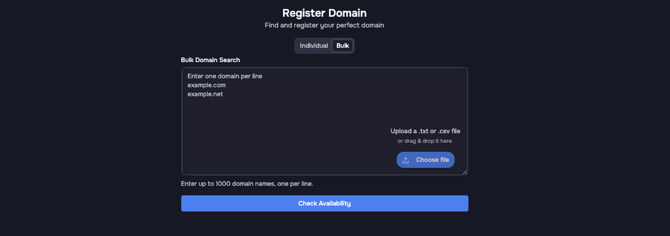
You can also register domains in bulk via the dashboard by using the bulk selector above the search window. There, you can either enter all desired domains on separate lines or upload a list of domains as a .csv or .txt file.
Step-by-Step Domain Search
Individual Domain Search
- Enter a search term — Type a keyword (e.g., "mybrand") or a full domain name (e.g., "mybrand.com") into the search box.
- Optional: Filter by TLD — Click the filter button to open the TLD filter panel. You can browse by category tabs:
- All — Complete list (includes gTLD and ccTLD subcategories)
- Popular — Common TLDs like .com, .net, .org
- ccTLD — Country-code top-level domains, used for specific countries or territories, such as .de for Germany
- Theme-based TLD categories — such as Business, Tech, Creative, Shopping, and others.
- Select or deselect TLDs, then click "Apply Filters" to save your selection. A badge indicates how many TLDs are currently selected (e.g., “3 selected”). Click “Clear All” to remove all filters, or “Reset” to restore the default filter settings. You can also include or exclude premium domains form search using the toggle above the categories.
- Click "Search" — The system checks availability. You'll see "Searching..." while results load.
- Read the results — Each domain gets a status badge:
- Green "Available" — The domain is free to register. An "Add to Cart" button appears.
- White "Unavailable" or "Already registered" — The domain is taken.
- Add to cart — Click "Add to Cart" next to any available domain. The button changes to "Adding..." briefly, then a success notification appears in the bottom-right: "Domain added to cart successfully".
- Go to checkout — Click the "Checkout" button to proceed to configuration and payment.
Bulk Domain Search
For checking many domains at once:
- Switch to the Bulk mode (tab or toggle near the search bar).
- Enter one domain per line in the text area (e.g.,
example.com,example.net— one per line). - Click "Check Availability".
- Results show in a table with Domain and Status columns. Summary badges appear at the top showing counts: "X available", "Y unavailable", "Z unsupported TLD".
- Click "Proceed to checkout with X available domains" to add all available results to your cart.
Common Mistakes
- Searching for just a TLD without a name (e.g., ".com" alone) won't return results.
- If you see "TLD not supported", that extension isn't available for registration through OpusDNS.
- Check the TLD filter if no results appear — you might have a restrictive filter active.