
Filter for Domains
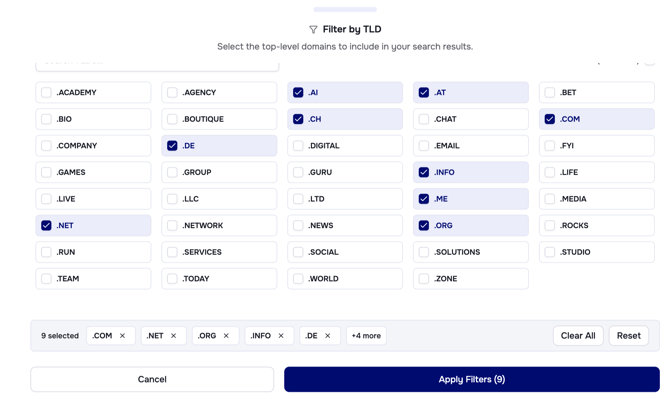
You can refine your domain search for new registrations by clicking the funnel icon in the domain search bar. A small red dot on the icon indicates that filters are applied. Within the filter menu, you can select or deselect specific domain extensions (TLDs) organized by category.

Default Filter
By default, certain TLDs are preselected, which may change over time to include popular trends as well as standard TLDs like .com, .net, and .org. The default TLDs are shown below the TLD list.
You can add new TLDs to your default filter at any time by selecting them and clicking Apply Filters.
Reset and clear your default Filter
You can reset to these defaults by clicking on Reset. To remove the filter completely, use Clear All, which also removes the red dot at the funnel icon.After resetting your filter to the default settings or using Clear All, click Apply Filters to confirm your domain search preferences.
Your preferences are saved and remain available beyond the current session.