
Contacts within the same organization often share the same address and company details. With Duplicate you create a copy of an existing contact and only change the fields that differ, for example a different email address or phone number for another role.
Duplicating is also the way to change contact details: contacts cannot be edited after they have been created. Duplicate the contact, adjust the copy and assign the new contact to your domains.
Duplicate a contact
- Go to Contacts > All Contacts and click the contact you want to copy.
- Click Duplicate in the top-right corner. Alternatively, click the duplicate icon in the contact's row in the Contacts list.
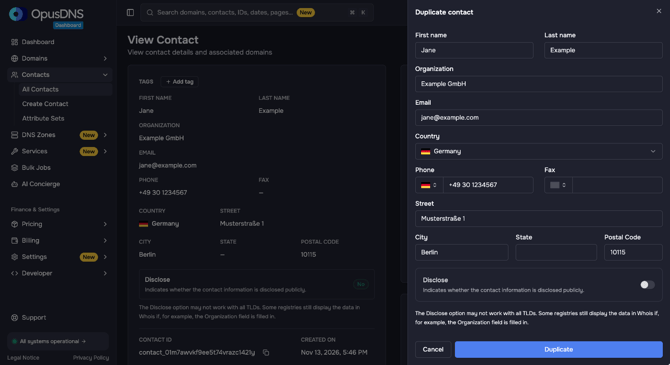
- The panel Duplicate contact opens with the contact details already filled in. Change the fields you need.
- Click Duplicate.
You see the message "Contact has been duplicated successfully". The copy is a new contact with its own contact ID. If something goes wrong, the message "Failed to duplicate contact" appears.
What is not copied
The panel only contains the basic contact details (name, organization, email, country, phone, fax, address and Disclose). Attribute sets and tags are not part of the duplicate. Link the attribute sets and add the tags to the new contact again if you need them.
Next steps
- Assign the new contact to your domains: Changing Domain Contacts
- Change contacts that use TLD-specific attribute sets: How to Change Contact Details or Attribute Sets Used by Domains