
Duplicating Contacts
Why is this useful?
Often, contacts within the same organization share the same address and business information, so only a few details need to be adjusted when creating a new contact.
You may also have different roles assigned to the same contact. In that case, you can duplicate the original contact and simply add different phone numbers or email addresses as needed.
With the duplication feature, you can easily create a copy of an existing contact and modify only the necessary fields.
Where to Find It
Path: Left sidebar → Contacts → click on a contact
How to duplicate contacts
Duplicating creates a copy of an existing contact, useful when you need similar profiles with slight differences.
- In the Contacts list, click the name of the contact you want to duplicate.
- Inside the contact profile, select “Duplicate Contact” in the top-right corner.
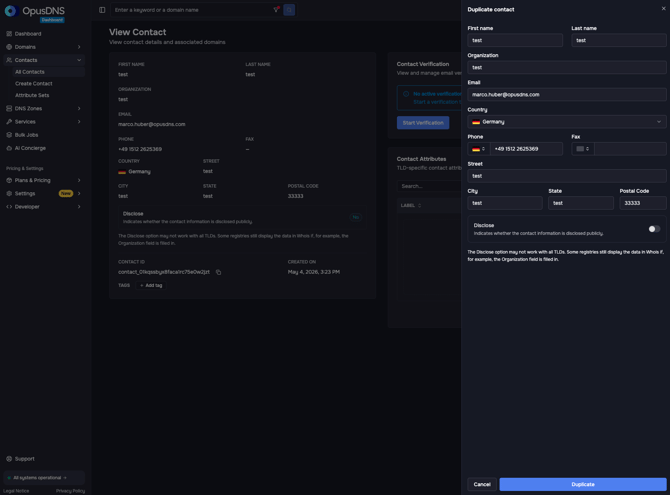
- A new contact will open in the sidebar with all contact fields pre-filled. Update the fields you want to change, then click “Duplicate”.
Messages:
- ✅ "Contact has been duplicated successfully"
- ❌ "Failed to duplicate contact"
.jpg?width=670&height=174&name=Knowledge%20Base%20Banner_%205%20Dark%20(1).jpg)