Domain Overview Page Explained
Where to Find It
Path: Left sidebar → Domains → click on any domain name
Direct URL: /domains/[DOMAIN]
What You'll See
The domain detail page has five tabs at the top:
- Overview — Domain properties and settings
- Nameservers — Manage Nameservers and Host objects (Glue records)
- Contacts — View and update domain contacts and roles (Registrant, Admin, Tech, Billing)
- DNS — DNS zone associated with this domain with DNS records, DNSSEC settings, Zone tags and delete option
- Domain Settings — Settings of your Domain like renewals, AUTH Code and more
Above the tabs, you will find the domain name together with a brief overview of the nameservers, transfer lock status, and renewal settings.
With the Action button at the top, you can directly manage your DNS settings. Next to it, there is a dropdown arrow offering multiple shortcuts to choose from.
Overview Tab Fields
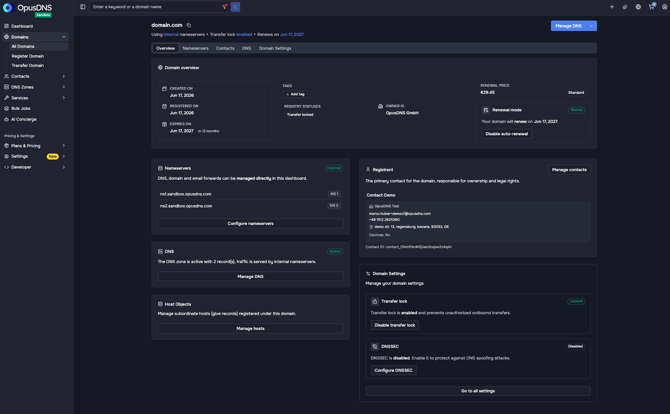
The Overview tab shows the following information and controls:
Domain Overview
Date fields in the left Column:
- Created on — When the domain was added to OpusDNS
- Registered on — When the domain was first registered
- Expires on — When the domain will expire
Properties in the middle Column:
- Tags
- Status — Registry status badges. Common statuses include:
- "Transfer locked" — Transfer lock is enabled
- "Pending transfer" — Transfer in progress
- Owner-ID
- Premium — Badge indicating if this is a premium domain ("Premium" or "Standard")
Renewal Information in the right Column:
- Renewal Price — Above the auto-renewal window
- Renewal Date — When the domain will be renewed
- "Auto renew period" — In auto-renewal window
Nameserver Overview
- Current Nameserver configuration with short link to manage your Nameservers. It displays
- "OpusDNS" — Internal Nameservers, labeled "Internal" badge
- "Custom" — External Nameservers, labeled "External" badge
- "None" — No nameservers configured
DNS Overview
- Short link to manage your DNS Zone and records
Host Objects Overview
- Short link to manage your hosts
Contact / Registrant Overview
- Your domain contacts and different roles with short link to manage contacts
- Contact ID — Information about the associated contact
- Contact Attributes —Additional Information of your contact, necessary for specific TLDs
Domain Settings Overview
- Transfer Lock — Shows current lock status with a toggle:
- "Locked" — Domain is protected from transfers. Click "Disable transfer lock" to unlock.
- "Unlocked" — Domain can be transferred. A warning notice appears: "Domain transfer protection disabled" with details about risks (auth code exposure, hijacking, ownership loss) and a "Re-enable protection" button.
- Each toggle shows a confirmation dialog explaining the consequences.
- DNSSEC — Shows current status (Enabled/Disabled) with configuration options for DS or KEY records. Toggle available with save action.
Nameservers Tab Fields
Clicking on the Nameservers tab or the link in the nameserver section of the overview will take you to the nameserver configuration.
On the left side, you can choose between two menu items: Nameservers and Hosts.
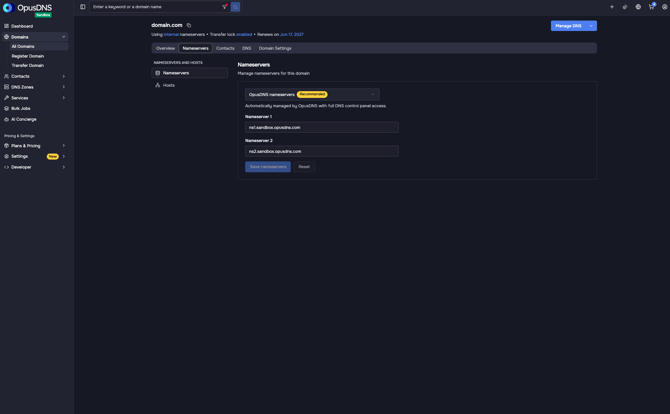
Managing Nameservers
In the Nameservers section, you can either select the OpusDNS internal nameservers (recommended) or use your own external nameserver setup. If you choose external nameservers, you must add at least two entries, such as ns1.customdomain.com and ns2.customdomain.com.
Managing Hosts
In the Hosts section, you can create glue records, where you can directly assign IP addresses to your nameservers.
Contacts Tab Fields
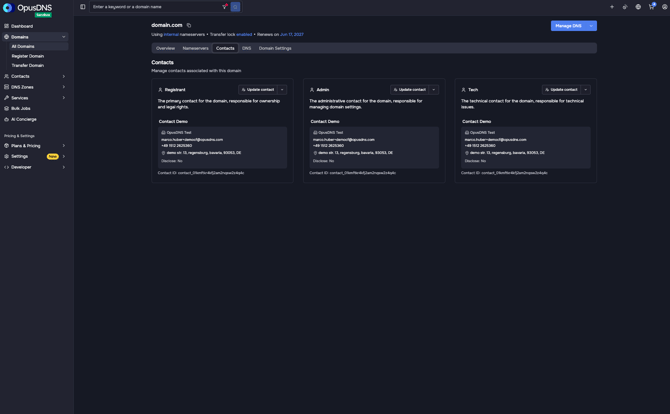
Clicking on the Contacts tab or the link in the contacts section of the overview will take you to the contacts configuration.
In this section, you can view and update your current domain contact details. Depending on the TLD, you can manage different contact roles, including Registrant, Admin, Technical, and Billing contacts.
DNS Tab Fields
Clicking on the DNS tab or the link in the DNS section of the overview will take you to the DNS configuration.
On the left side, you can choose between two three items: Records, DNSSEC and an Delete DNS Zone. Also you can manage your DNS Tags right here.
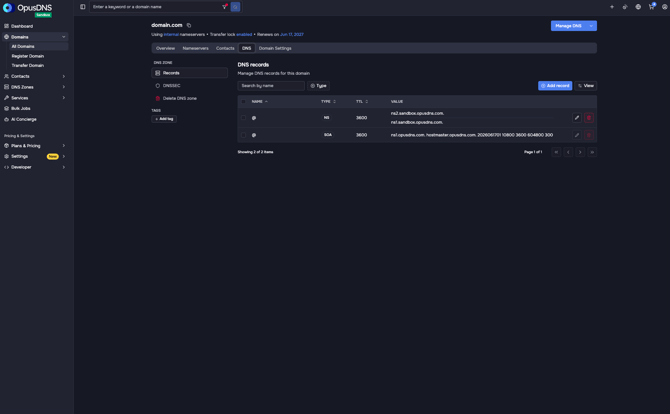
Managing Records
Clicking on Records in the left menu allows you to view, update, and add DNS records. New records can be created using the Add Record button above the DNS record table.
Managing DNSSEC
Clicking on DNSSEC in the left menu allows you to enable DNSSEC for improved security.
Please verify with your external nameserver provider whether DNSSEC is supported before enabling it, if you are using external nameservers.
Deleting DNS Zone
Clicking on Delete DNS Zone opens a confirmation dialog where you can proceed with deleting the zone.
After confirming the action, the DNS zone will be permanently deleted and cannot be undone.
Please use this feature carefully and only if you are sure about the change.
Domain Settings Tab Fields
Clicking on the Domain Settings tab or the link "Go to all settings" in the Domain Settings section of the overview will take you to the Domain Settings configuration.
You can use the left-hand menu to navigate through different settings, or view all options at once in the All section.
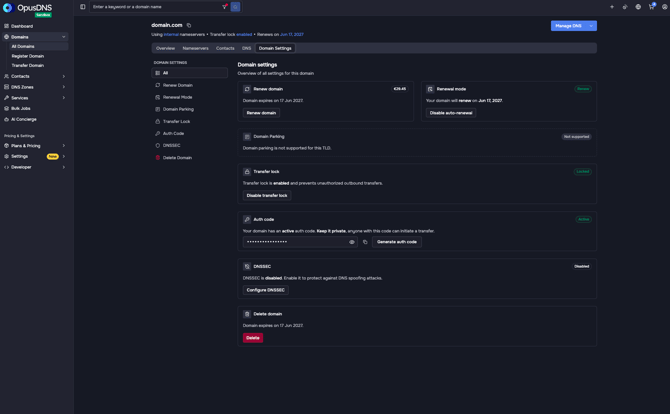
Here you can manage multiple domain settings in one place:
- Renew your domain manually or directly
- Enable or disable automatic renewal
- Manage domain parking activation
- Control transfer lock settings
- Copy or generate the auth code for transfers away from OpusDNS
- Manage DNSSEC settings
- Delete the domain