
Setting Default Nameservers for New Registrations
Set your preferred default nameservers so they're automatically applied to every new domain you register.
Where to Find It
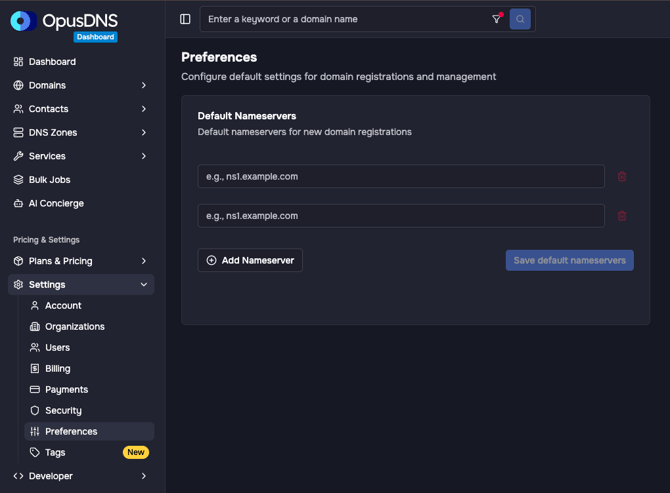
Path: Left sidebar → Settings → Preferences → Default Nameservers card
Direct URL: /settings/preferences
What You'll See
A card titled "Default Nameservers" with the description "Default nameservers for new domain registrations". It contains:
- A list of nameserver input fields, each with placeholder "e.g., ns1.example.com"
- An "Add Nameserver" button to add more entries
- A "Save default nameservers" button at the bottom
Step-by-Step
- Navigate to Settings → Preferences in the left sidebar.
- Find the Default Nameservers card.
- Enter at least two nameserver hostnames (e.g.,
ns1.example.com,ns2.example.com). - To add more, click "Add Nameserver".
- To remove one, click the remove button next to the entry.
- Click "Save default nameservers" (shows "Saving default nameservers" while processing).
Validation
- Minimum 2 required — "At least two nameservers are required"
- Valid hostname format — "Please enter a valid nameserver hostname (e.g., ns1.example.com)"
Success/Error Messages
- ✅ "Default nameservers saved successfully."
- ❌ "Failed to save default nameservers."
- ❌ "Failed to load default nameservers." (on page load)
Important Notes
- These defaults apply to future domain registrations only. Existing domains are not affected.
- During checkout, you can override these defaults per registration by choosing custom nameservers.
- If you use OpusDNS nameservers, you may not need to set custom defaults — the checkout flow offers OpusDNS nameservers as the recommended option.