
What are contacts?
Contacts are used when registering or transferring domains. They represent different responsibilities related to a domain. Depending on the domain extension (TLD) and the registry managing it, you can assign different contacts for specific purposes.
Every domain requires a registrant contact, which is the primary contact responsible for the domain. Many domain extensions also allow you to define additional contacts, such as technical and administrative contacts.
Some domain extensions have specific requirements for contact data. For example, the contact address may need to be located in a certain country or region. All contact information must be accurate to ensure successful verification and compliance with registry policies.
In some cases, additional contact attributes must be provided during the domain registration or transfer process to meet registry regulations.
In this article, you will learn how to create contacts.
Creating a Contact Profile
Contacts are used when registering or managing domains. Each domain requires at least a Registrant contact.
Where to Find It
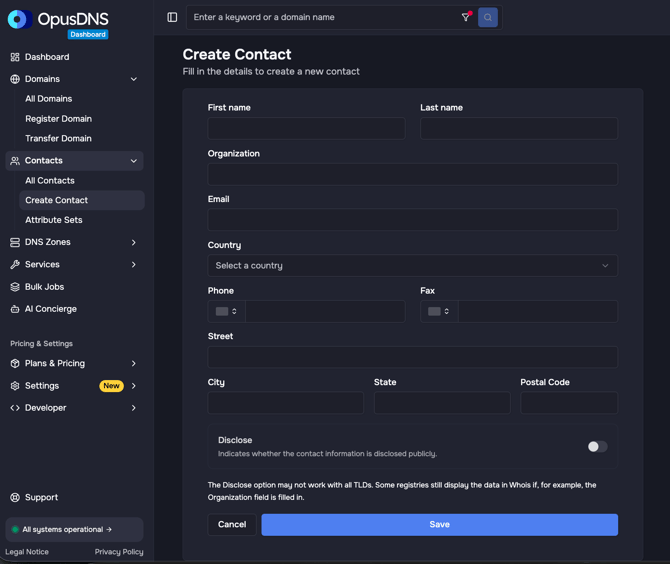
Path: Left sidebar → Contacts → Create Contact
Direct URL: /contacts/new
You can also create contacts from:
- The Quick Actions bar on the Dashboard ("Add Contact")
- During domain checkout ("Create Contact" button in the Contacts section)
- From the contact list page ("Create contact" button)
You can also select contacts during the domain registration and transfer process and also create new ones directly there.
What You'll See
A form page titled "Create Contact" with the subtitle "Fill in the details to create a new contact." The form contains fields for registrant information such as name, email, address, phone, country, and other required fields.
Step-by-Step
- Navigate to Contacts → Create Contact in the left sidebar.
- Fill in all required fields (marked with asterisks or validation messages).
- Click "Create contact" to save.
- On success, a notification appears: "Contact has been created successfully".
- The contact is now available for assignment to domains.
Success/Error Messages
- ✅ "Contact has been created successfully"
- ❌ "Failed to create contact"
.jpg?width=670&height=174&name=Knowledge%20Base%20Banner_%205%20Dark%20(1).jpg)