
Changing Your Password
Where to Find It
Path: Left sidebar → Settings → Security → Account Password card
What You'll See
Account Password card:
- Title: "Account Password"
- Description: "Sign in by entering your password."
- If configured: A "Set up password" or change password action
- If not configured: "No password configured yet." with a setup button
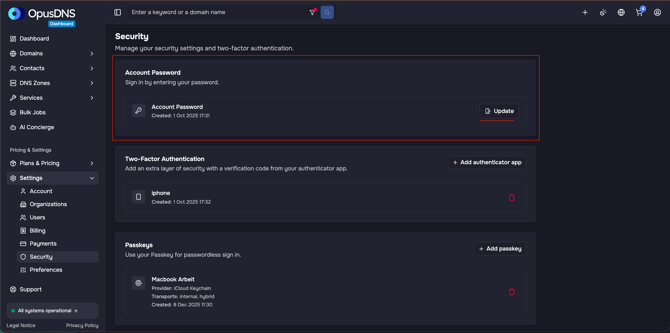
Changing Your Password
- Navigate to Settings → Security.
- Find the Account Password card.
- Click the change/update password action.
- Follow the prompts to enter your current password and set a new one.
Success/Error Messages
- ✅ "Password successfully updated"
- ❌ "Failed to update password"
- "Password update cancelled" (if you cancel)