Before getting started, download and install the free OpusDNS WHMCS plugin by following the instructions here.
The screenshots and design shown here may not exactly match your WHMCS interface and are subject to change. However, the functionality and navigation remain the same.
After installing the OpusDNS WHMCS plugin, you will find new features available in your dashboard.
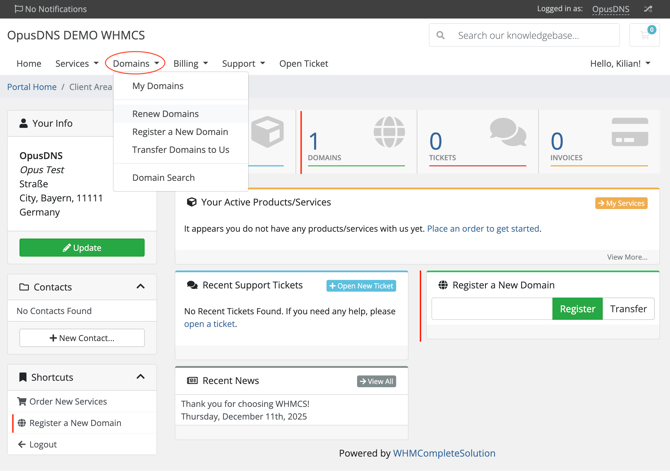
On your home screen, you can quickly register or transfer domains, view the total number of domains in your account, and access convenient shortcuts if you prefer.
By clicking the top navigation menu, you will find the following sections:
-
My Domains – Manage your existing domains, DNS zones, and nameserver settings
-
Renew Domains – Actively manage and renew your domains
-
Register Domain – Register a new domain
-
Transfer Domains – Transfer existing domains to OpusDNS
-
Domain Search – Check the availability of domains you want to register
1. Domain Search, Registration and Transfer
1.1 Domain Search & Registration
If you want to add new domains to your portfolio, you can use Domain Search or Register Domain in the top Domain menu.
You will see a search bar along with promotions below that might be of interest.
You can also view price lists for different domain extensions (TLDs), filter your options using the selection menu above, or search directly in the search bar.
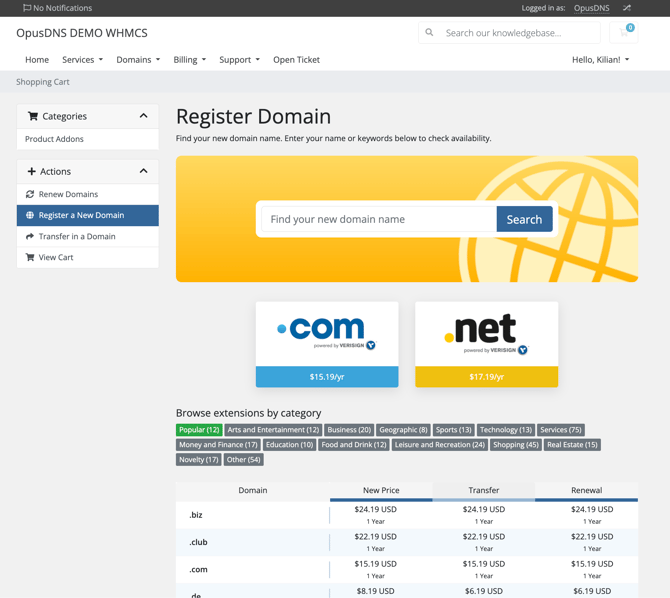
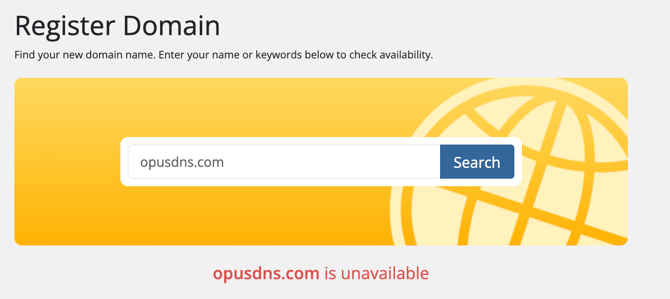
You can search for domains without specifying a TLD to see available options and suggestions. Alternatively, you can search for a specific domain to check if your desired name is available.
If the domain is not available, you will receive a notification along with alternative suggestions.
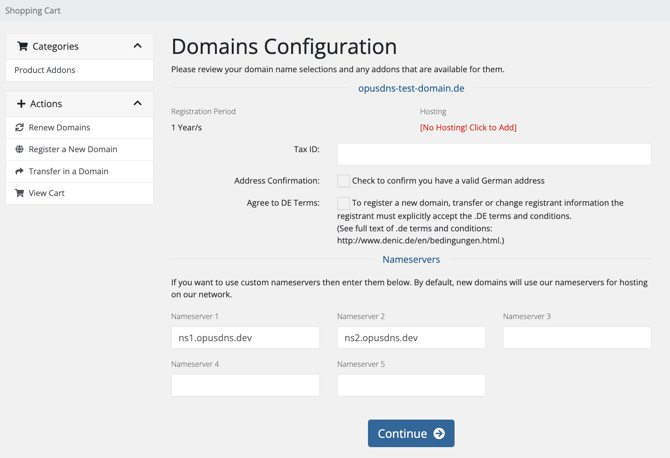
Once you have added your chosen domains to the cart, you can proceed to checkout. Here, you can enter the required information and confirm the details. You can choose to use the pre-filled OpusDNS nameservers or enter custom nameservers if you prefer.
Please note:
-
If you don’t have a specific use case or are unsure which nameservers to use, you can leave the default OpusDNS nameservers. You can always change them later.
-
When you register your domain, a DNS zone is automatically created for you.
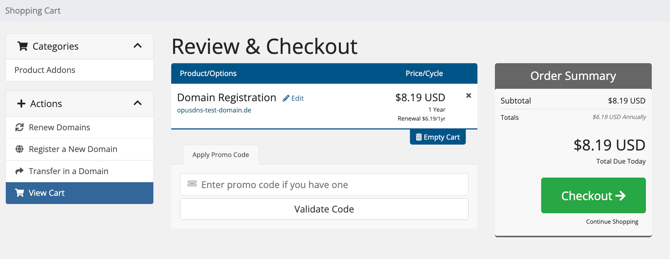
Please proceed to the final checkout page. If all the information is correct, click the Checkout button to complete the domain registration.
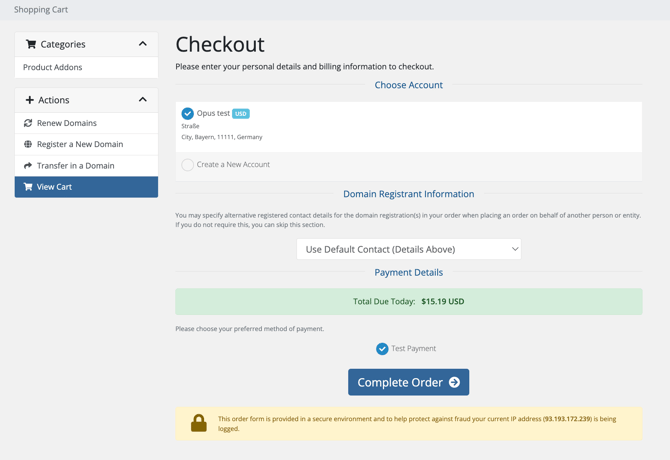
Select the account to which you want to add the domain and confirm your order. After that, the domain will appear in your portfolio.
The account you select or create as a new account will serve as the registrant contact. This is the contact responsible for the domain and should be filled with accurate information that matches the actual owner.
If you are placing an order on behalf of another person or entity, you can specify alternative registrant contact details for the domain(s) during the order process.
1.2 Domain Transfer
If you have domains in your portfolio that are registered with another registrar, you can transfer them to your OpusDNS portfolio via WHMCS while still managing everything in your usual WHMCS interface.
To transfer your domain(s), click “Transfer your domain to us” in the domain menu at the top.
Please note:
-
When you transfer a domain, it will be renewed for an additional year.
-
When you transfer your domain via WHMCS to your OpusDNS portfolio, a DNS zone is automatically created for you.
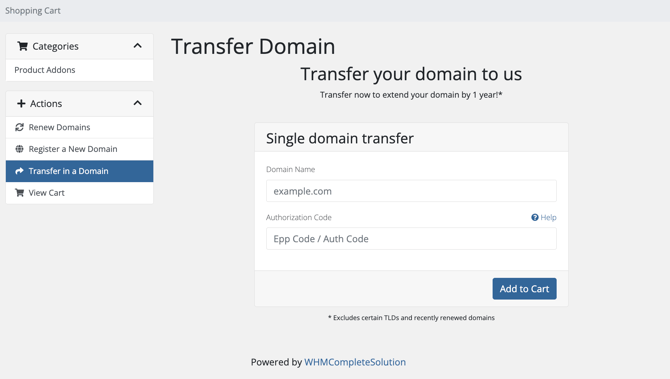
Enter your domain name along with your EPP Code or Auth Code (Auth Info).
You can find this code in the domain management section of your current registrar. The auth code acts as a key for your domain and should never be shared. Depending on your previous registrar, you may need to generate the code in your domain settings before using it.
After adding your domain to the cart, you will be taken to the domain configuration section, where you can set up your nameservers. By default, the OpusDNS nameservers are pre-filled, but you can also enter custom nameservers if you prefer.
Note: If you don’t have a specific use case or are unsure which nameservers to use, you can leave the default OpusDNS nameservers. You can always change them later.
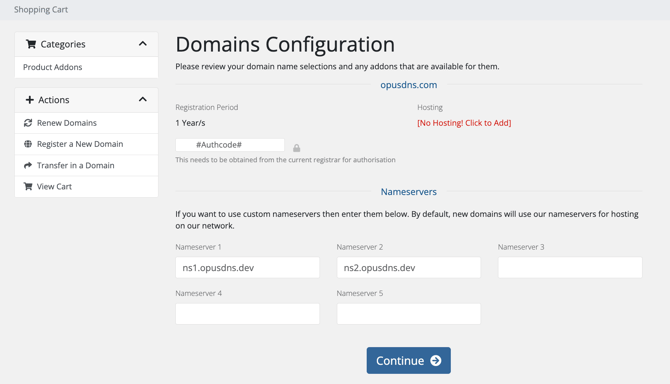
Please proceed to the final checkout page. If all the information is correct, click the Checkout button to complete the domain registration.
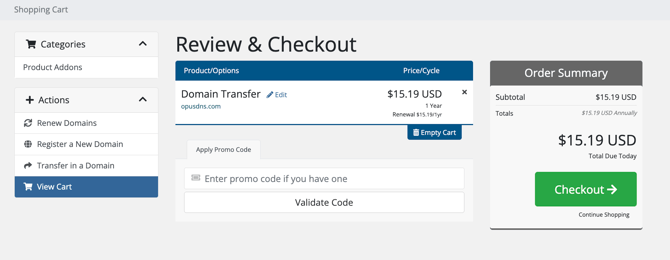
Select the account to which you want to transfer the domain and confirm your order. After that, the domain will appear in your portfolio.
Note: The account you select or create as a new account will serve as the registrant contact. This is the contact responsible for the domain and should be filled with accurate information that matches the actual owner.
If you are placing an order on behalf of another person or entity, you can specify alternative registrant contact details for the domain(s) during the order process.
2.0 Managing your Domains
2.1 Manual Domain Renewal
By default, your domains are not automatically renewed, which means they will expire after one year. To keep your domains in your portfolio, go to the Domains menu in the top bar and click Renew Domains. Here, you can add your existing domains to the cart and select the renewal period you want.
(Alternatively, go to My Domains, select the domains you want to renew, and click Renew Domains.)
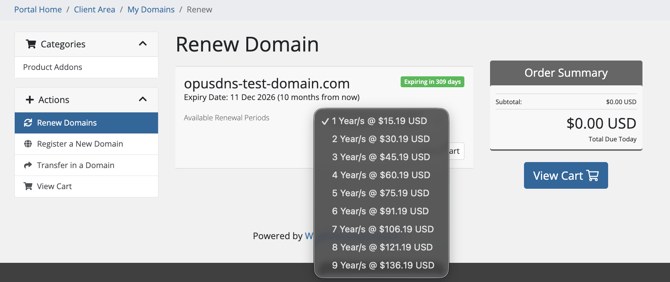
Go to View Cart, review your cart details, proceed to Checkout, and confirm your order to renew your domains.
2.2 Automatic Domain Renewal
If you don’t want to manually renew each domain or if you manage multiple domains and want to ensure they are automatically renewed each year, you can set up automatic domain renewals in your interface.
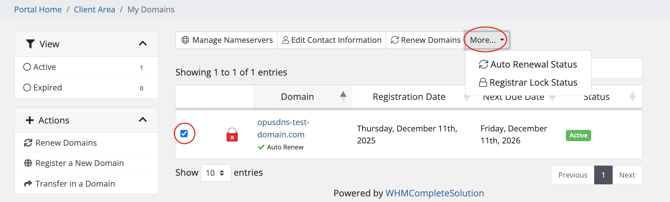
Go to the Domains menu at the top and select My Domains. Choose all the domains you want to enable automatic renewal for, click the More button, and select Auto Renewal Status.
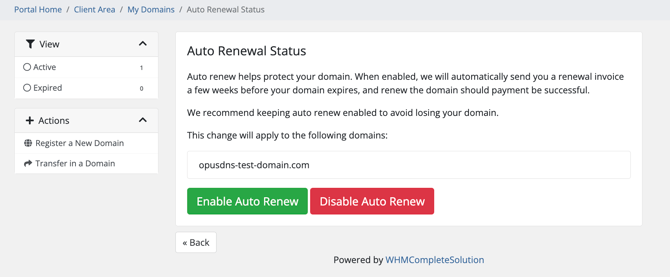
Confirm automatic renewal by clicking “Enable Auto Renew”. If it is already enabled, you can also choose to disable this option.
2.3 Identify Renewal Status
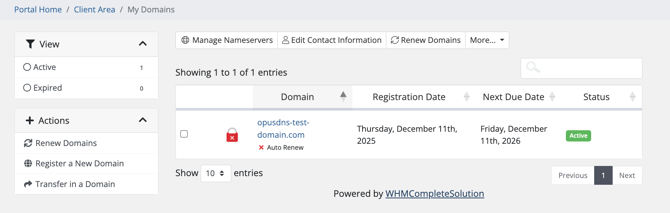
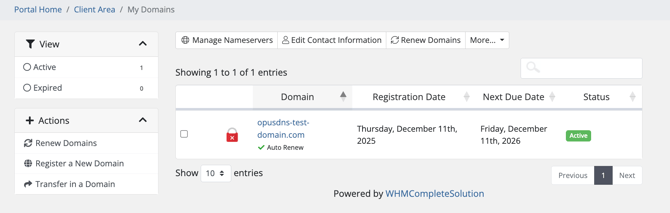
You can see the status of the renewal at the My domains interface below the domain name.
Disabled:
Enabled:
2.4 Update Domain Nameservers
Go to the top Domains menu and select My Domains. From there, choose the domains for which you want to change the nameservers and click Manage Nameservers.
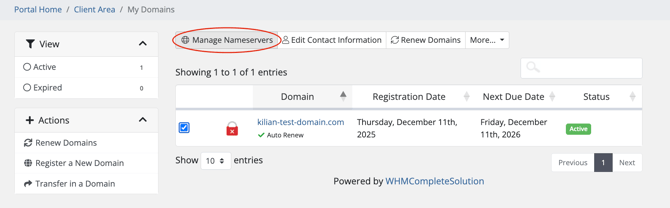
You can switch to the default OpusDNS nameservers or enter custom nameservers.
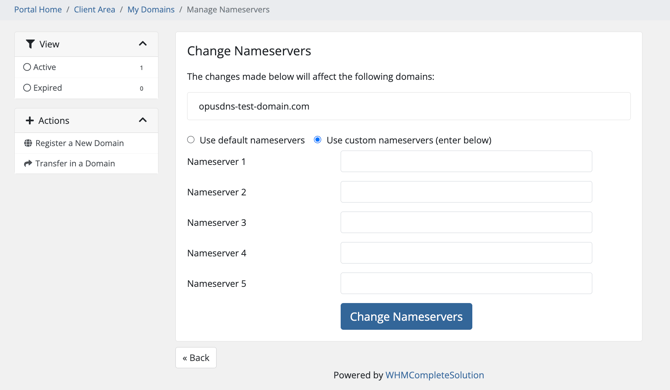
Confirm your changes to apply them.
2.5 Update Domain Registrant (Contact) Information
Go to the top Domains menu and select My Domains. From there, choose the domains for which you want to change the Contact information and click Edit Contact Information.
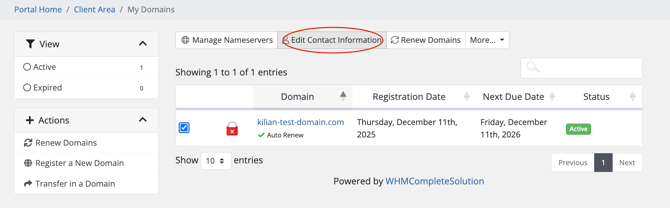
You can select an existing account contact or enter custom information for your domain.
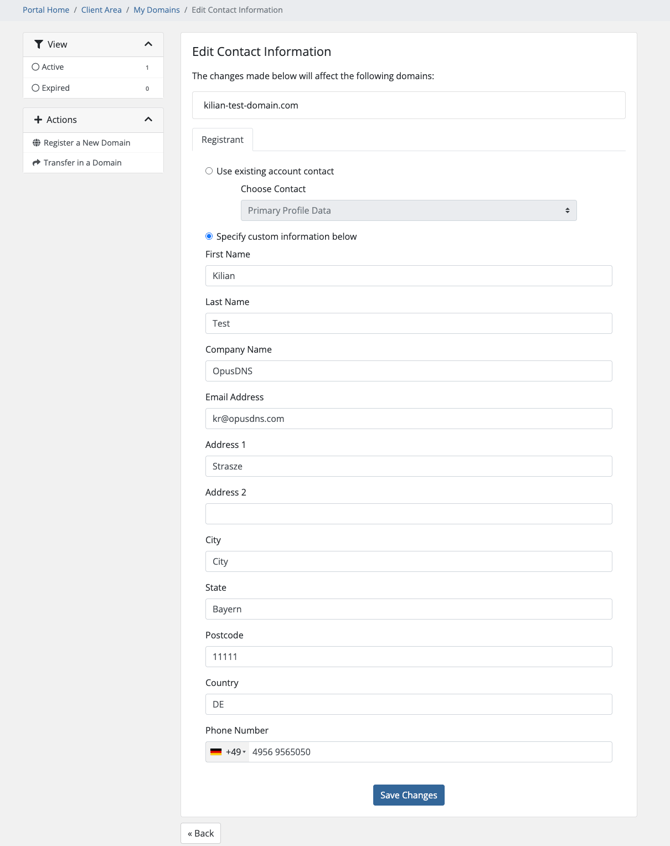
Click Save Changes at the bottom to confirm.
2.6 Update Registrar Lock Status
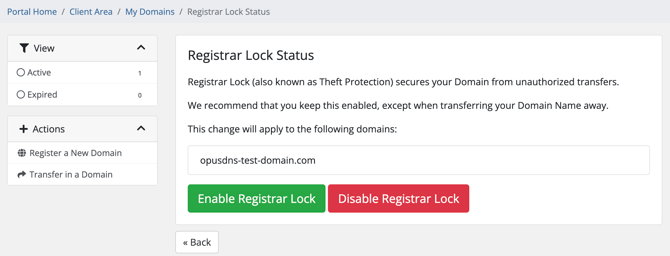
To protect your domains, you can enable the registrar lock. This prevents unauthorized transfers of your domains.
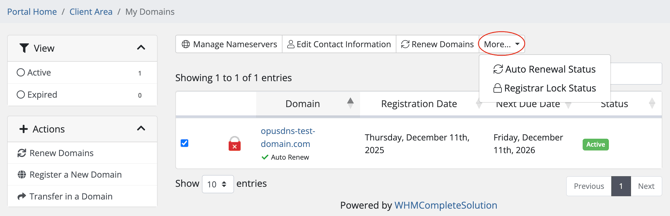
Go to My Domains, select the domains you want to manage, and click More → Registrar Lock Status to enable or disable the lock.
Note: If you plan to transfer a domain out of WHMCS or your OpusDNS portfolio, you may need to disable the lock.
Click on Enable or Disable Registrar Lock.
2.7 View and Update Domain Information (Manual Updates for Single Domains)
Go to the top domains menu, to my domains and click on your domain in the listing (not on the domain itself, which leads to opening the domain, but on the table item).
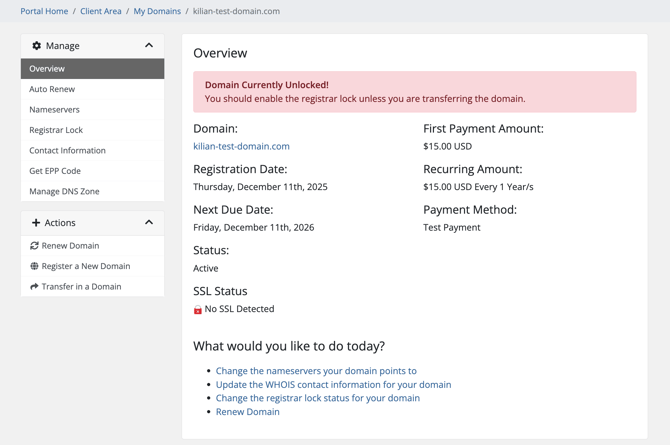
Here you can see core information like the current status of registrar lock, registration information, price, status, ssl information etc.
Here you can also change configurations for your specific domain like updating nameservers, contact, registrar lock, managing dns zone.
2.8 Update DNS Zone and Add DNS Records
Go to the top Domains menu, select My Domains, and click on your domain in the listing (click the table item, not the domain name itself, which opens the domain details).
Then, click Manage DNS Zone on the left.
Here, you can enable or disable DNSSEC for additional domain security.
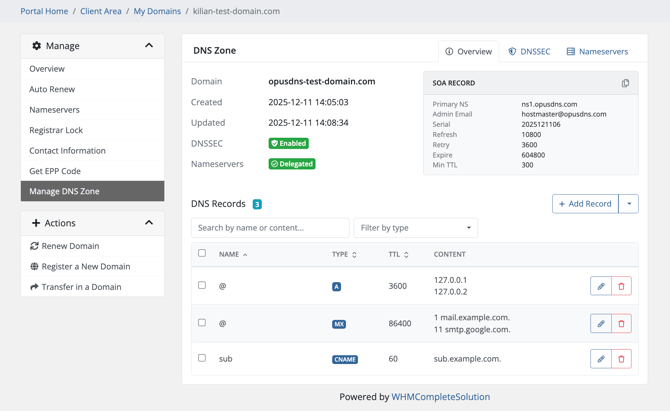
You can also add various DNS records, such as MX records for email, CNAME records for subdomains, A records, and many others you may need.